
by Joche Ojeda | Feb 9, 2026 | A.I
I wrote my previous article about closing the loop for agentic development earlier this week, although the ideas themselves have been evolving for several days. This new piece is simply a progress report: how the approach is working in practice, what I’ve built so far, and what I’m learning as I push deeper into this workflow.
Short version: it’s working.
Long version: it’s working really well — but it’s also incredibly token-hungry.
Let’s talk about it.
A Familiar Benchmark: The Activity Stream Problem
Whenever I want to test a new development approach, I go back to a problem I know extremely well: building an activity stream.
An activity stream is basically the engine of a social network — posts, reactions, notifications, timelines, relationships. It touches everything:
- Backend logic
- UI behavior
- Realtime updates
- State management
- Edge cases everywhere
I’ve implemented this many times before, so I know exactly how it should behave. That makes it the perfect benchmark for agentic development. If the AI handles this correctly, I know the workflow is solid.
This time, I used it to test the closing-the-loop concept.
The Current Setup
So far, I’ve built two main pieces:
- An MCP-based project
- A Blazor application implementing the activity stream
But the real experiment isn’t the app itself — it’s the workflow.
Instead of manually testing and debugging, I fully committed to this idea:
The AI writes, tests, observes, corrects, and repeats — without me acting as the middleman.
So I told Copilot very clearly:
- Don’t ask me to test anything
- You run the tests
- You fix the issues
- You verify the results
To make that possible, I wired everything together:
- Playwright MCP for automated UI testing
- Serilog logging to the file system
- Screenshot capture of the UI during tests
- Instructions to analyze logs and fix issues automatically
So the loop becomes:
write → test → observe → fix → retest
And honestly, I love it.
My Surface Is Working. I’m Not Touching It.
Here’s the funny part.
I’m writing this article on my MacBook Air.
Why?
Because my main development machine — a Microsoft Surface laptop — is currently busy running the entire loop by itself.
I told Copilot to open the browser and actually execute the tests visually. So it’s navigating the UI, filling forms, clicking buttons, taking screenshots… all by itself.
And I don’t want to touch that machine while it’s working.
It feels like watching a robot doing your job. You don’t interrupt it mid-task. You just observe.
So I switched computers and thought: “Okay, this is a perfect moment to write about what’s happening.”
That alone says a lot about where this workflow is heading.
Watching the Loop Close
Once everything was wired together, I let it run.
The agent:
- Writes code
- Runs Playwright tests
- Reads logs
- Reviews screenshots
- Detects issues
- Fixes them
- Runs again
Seeing the system self-correct without constant intervention is incredibly satisfying.
In traditional AI-assisted development, you often end up exhausted:
- The AI gets stuck
- You explain the issue
- It half-fixes it
- You explain again
- Something else breaks
You become the translator and debugger for the model.
With a self-correcting loop, that burden drops dramatically. The system can fail, observe, and recover on its own.
That changes everything.
The Token Problem (Yes, It’s Real)
There is one downside: this workflow is extremely token hungry.
Last month I used roughly 700% more tokens than usual. This month, and we’re only around February 8–9, I’ve already used about 200% of my normal limits.
Why so expensive?
Because the loop never sleeps:
- Test execution
- Log analysis
- Screenshot interpretation
- Code rewriting
- Retesting
- Iteration
Every cycle consumes tokens. And when the system is autonomous, those cycles happen constantly.
Model Choice Matters More Than You Think
Another important detail: not all models consume tokens equally inside Copilot.
Some models count as:
- 3× usage
- 1× usage
- 0.33× usage
- 0× usage
For example:
- Some Anthropic models are extremely good for testing and reasoning
- But they can count as 3× token usage
- Others are cheaper but weaker
- Some models (like GPT-4 Mini or GPT-4o in certain Copilot tiers) count as 0× toward limits
At some point I actually hit my token limits and Copilot basically said: “Come back later.”
It should reset in about 24 hours, but in the meantime I switched to the 0× token models just to keep the loop running.
The difference in quality is noticeable.
The heavier models are much better at:
- Debugging
- Understanding logs
- Self-correcting
- Complex reasoning
The lighter or free models can still work, but they struggle more with autonomous correction.
So model selection isn’t just about intelligence — it’s about token economics.
Why It’s Still Worth It
Yes, this approach consumes more tokens.
But compare that to the alternative:
- Sitting there manually testing
- Explaining the same bug five times
- Watching the AI fail repeatedly
- Losing mental energy on trivial fixes
That’s expensive too — just not measured in tokens.
I would rather spend tokens than spend mental fatigue.
And realistically:
- Models get cheaper every month
- Tooling improves weekly
- Context handling improves
- Local and hybrid options are evolving
What feels expensive today might feel trivial very soon.
MCP + Blazor: A Perfect Testing Ground
So far, this workflow works especially well for:
- MCP-based systems
- Blazor applications
- Known benchmark problems
Using a familiar problem like an activity stream lets me clearly measure progress. If the agent can build and maintain something complex that I already understand deeply, that’s a strong signal.
Right now, the signal is positive.
The loop is closing. The system is self-correcting. And it’s actually usable.
What Comes Next
This article is just a status update.
The next one will go deeper into something very important:
How to design self-correcting mechanisms for agentic development.
Because once you see an agent test, observe, and fix itself, you don’t want to go back to manual babysitting.
For now, though:
The idea is working. The workflow feels right. It’s token hungry. But absolutely worth it.
Closing the loop isn’t theory anymore — it’s becoming a real development style.

by Joche Ojeda | Mar 13, 2025 | netcore, Uno Platform
For the past two weeks, I’ve been experimenting with the Uno Platform in two ways: creating small prototypes to explore features I’m curious about and downloading example applications from the Uno Gallery. In this article, I’ll explain the first steps you need to take when creating an Uno Platform application, the decisions you’ll face, and what I’ve found useful so far in my journey.
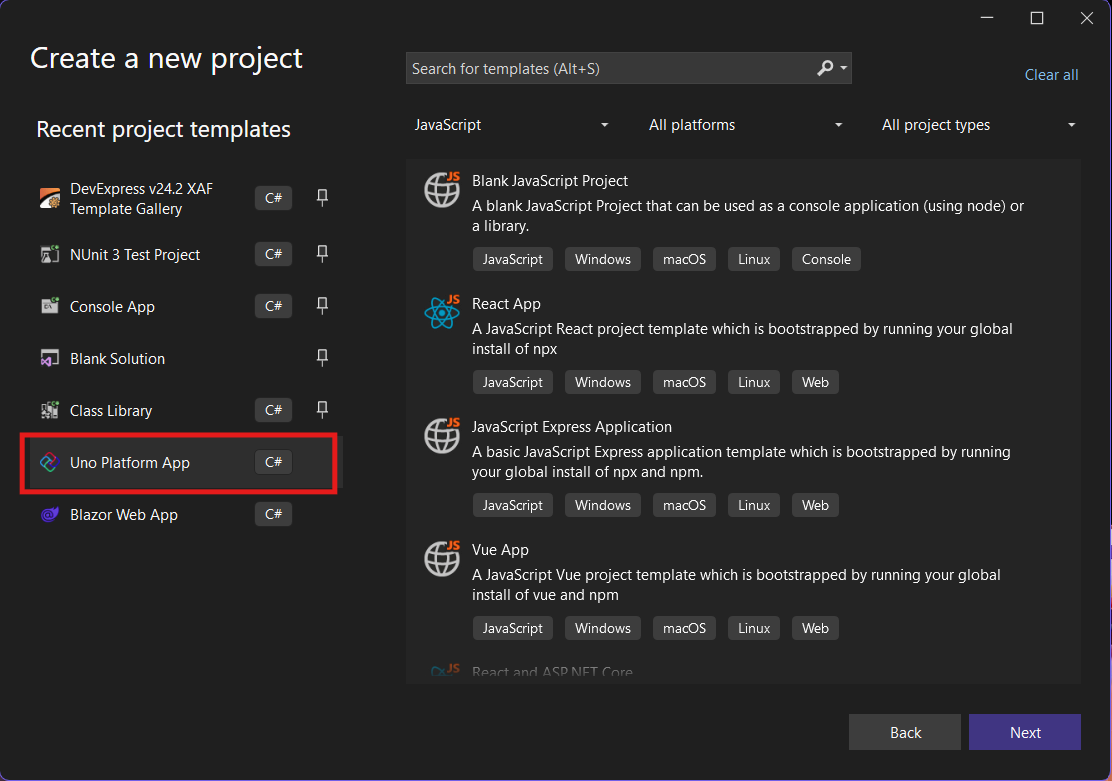
Step 1: Create a New Project
I’m using Visual Studio 2022, though the extensions and templates work well with previous versions too. I have both studio versions installed, and Uno Platform works well in both.
Step 2: Project Setup
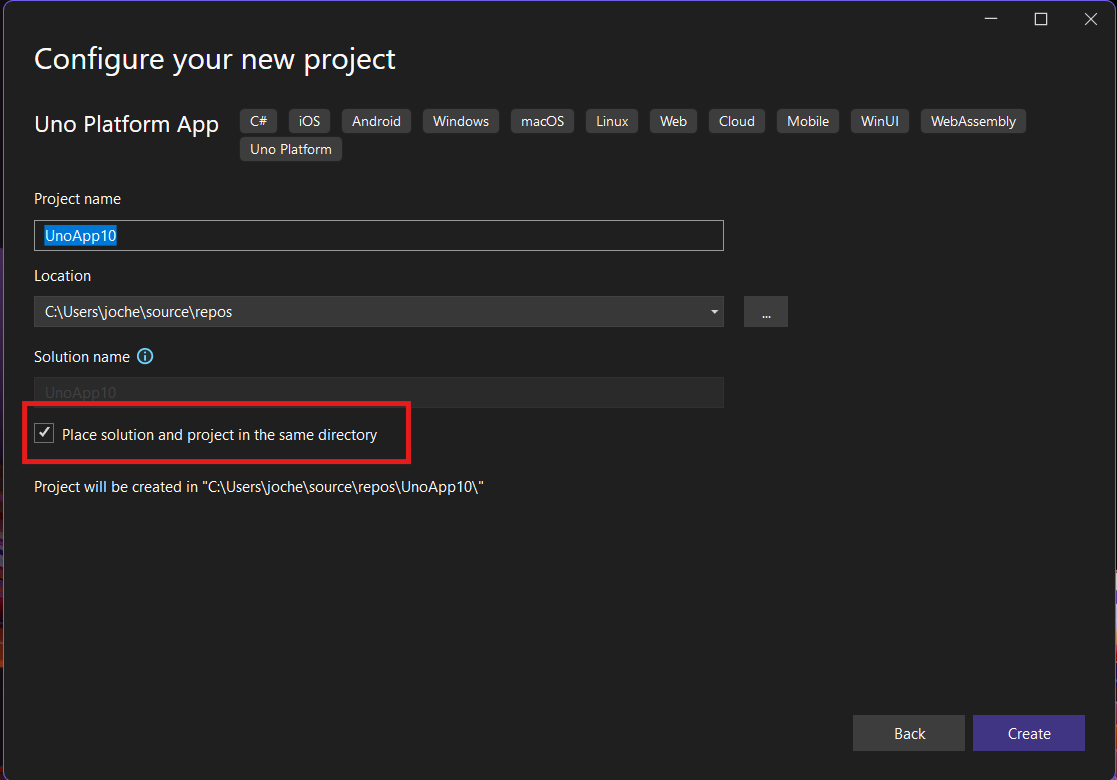
After naming your project, it’s important to select “Place solution and project in the same directory” because of the solution layout requirements. You need the directory properties file to move forward. I’ll talk more about the solution structure in a future post, but for now, know that without checking this option, you won’t be able to proceed properly.
Step 3: The Configuration Wizard
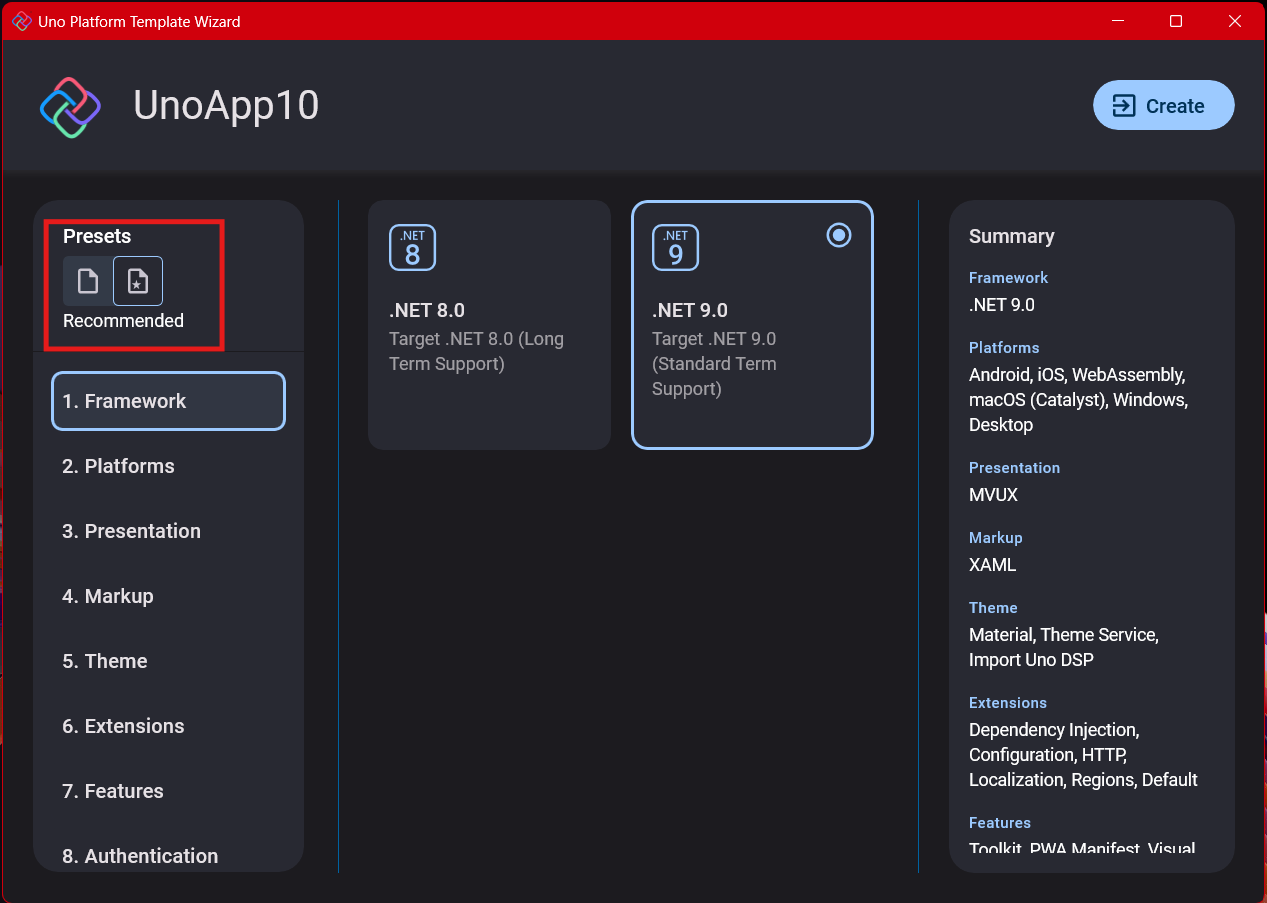
The Uno Platform team has created a comprehensive wizard that guides you through various configuration options. It might seem overwhelming at first, but it’s better to have this guided approach where you can make one decision at a time.
Your first decision is which target framework to use. They recommend .NET 9, which I like, but in my test project, I’m working with .NET 8 because I’m primarily focused on WebAssembly output. Uno offers multi-threading in Web Assembly with .NET 8, which is why I chose it, but for new projects, .NET 9 is likely the better choice.
Step 4: Target Platforms
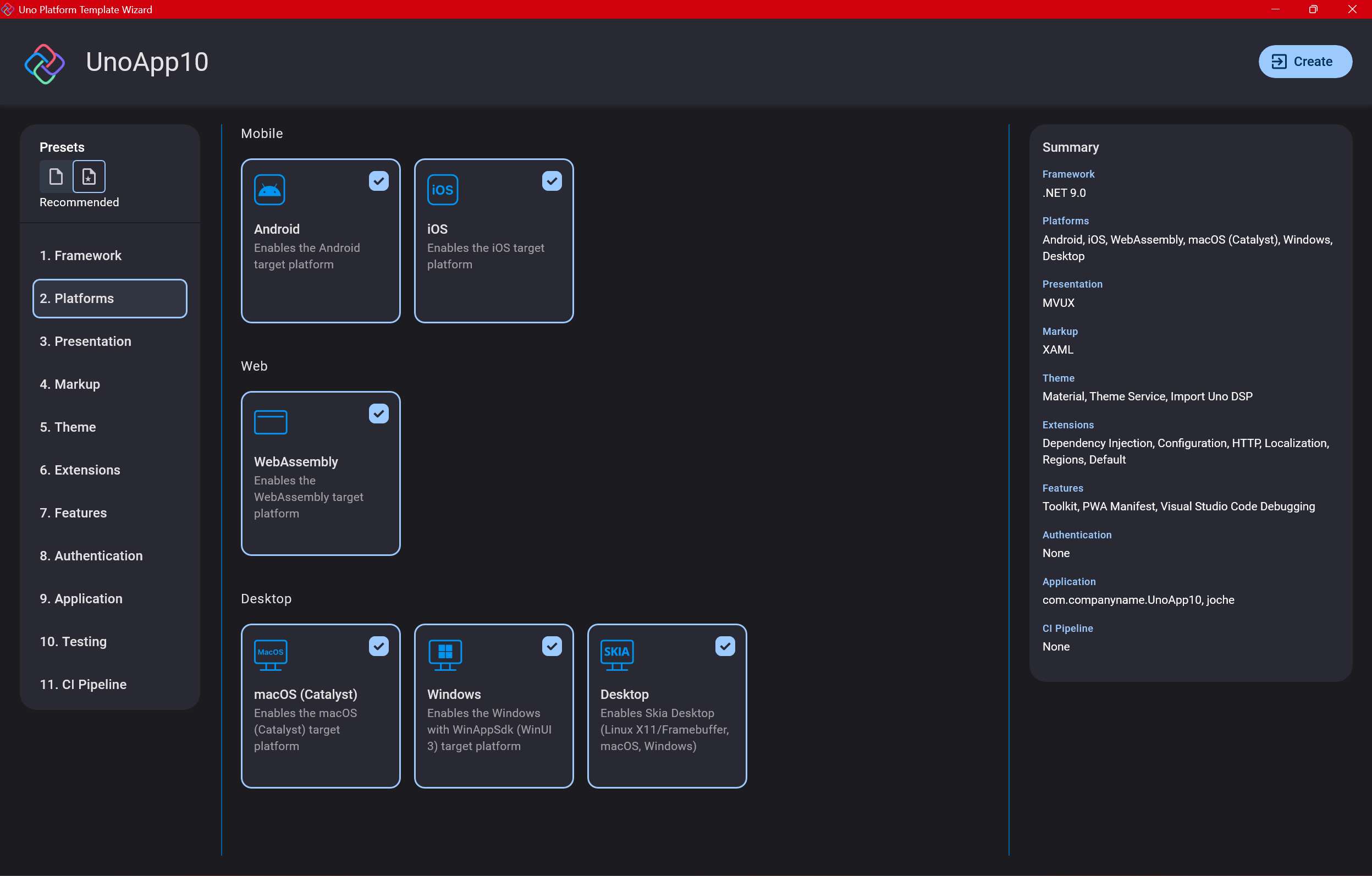
Next, you need to select which platforms you want to target. I always select all of them because the most beautiful aspect of the Uno Platform is true multi-targeting with a single codebase.
In the past (during the Xamarin era), you needed multiple projects with a complex directory structure. With Uno, it’s actually a single unified project, creating a clean solution layout. So while you can select just WebAssembly if that’s your only focus, I think you get the most out of Uno by multi-targeting.
Step 5: Presentation Pattern
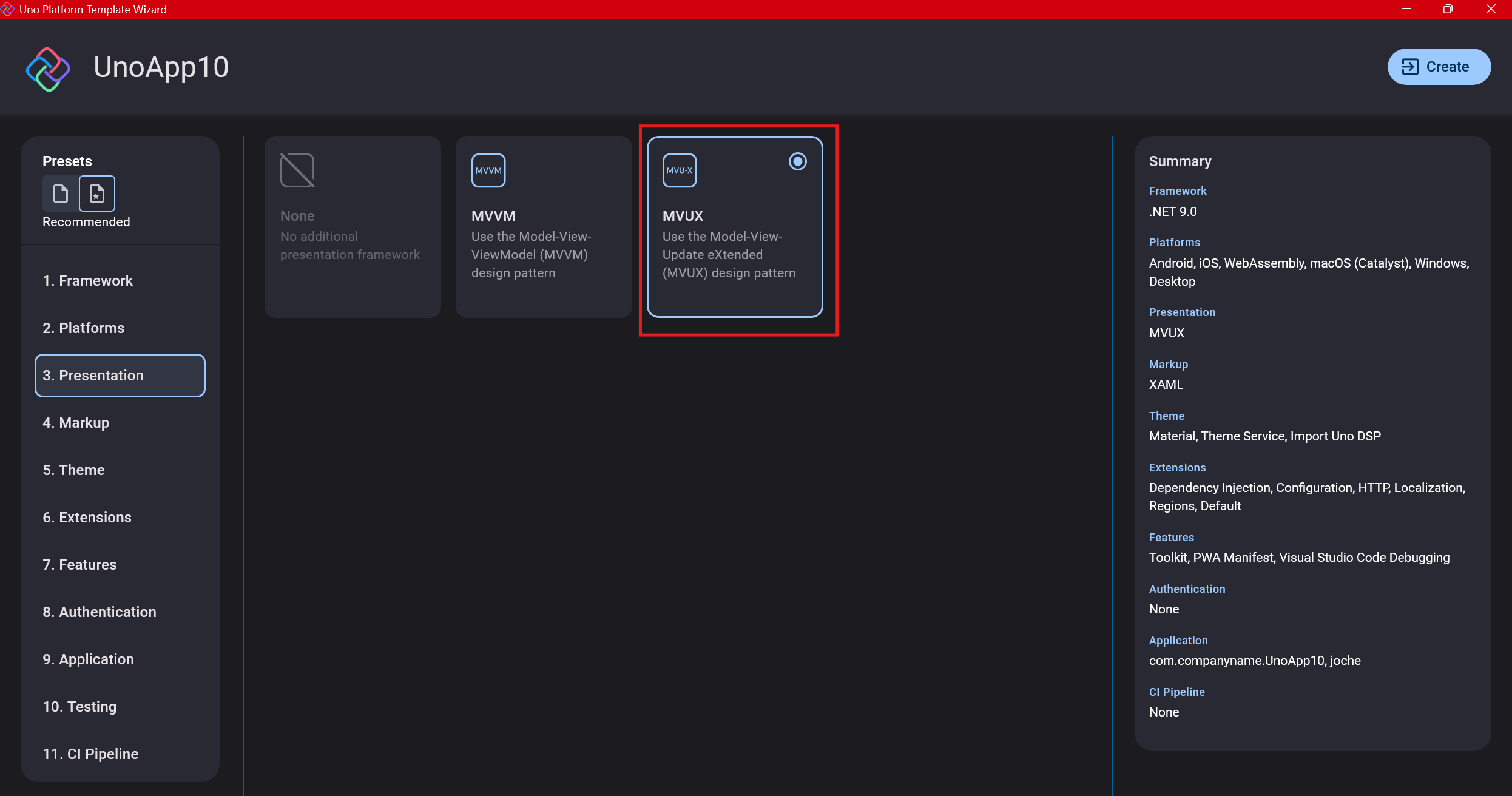
The next question is which presentation pattern you want to use. I would suggest MVUX, though I still have some doubts as I haven’t tried MVVM with Uno yet. MVVM is the more common pattern that most programmers understand, while MVUX is the new approach.
One challenge is that when you check the official Uno sample repository, the examples come in every presentation pattern flavor. Sometimes you’ll find a solution for your task in one pattern but not another, so you may need to translate between them. You’ll likely find more examples using MVVM.
Step 6: Markup Language
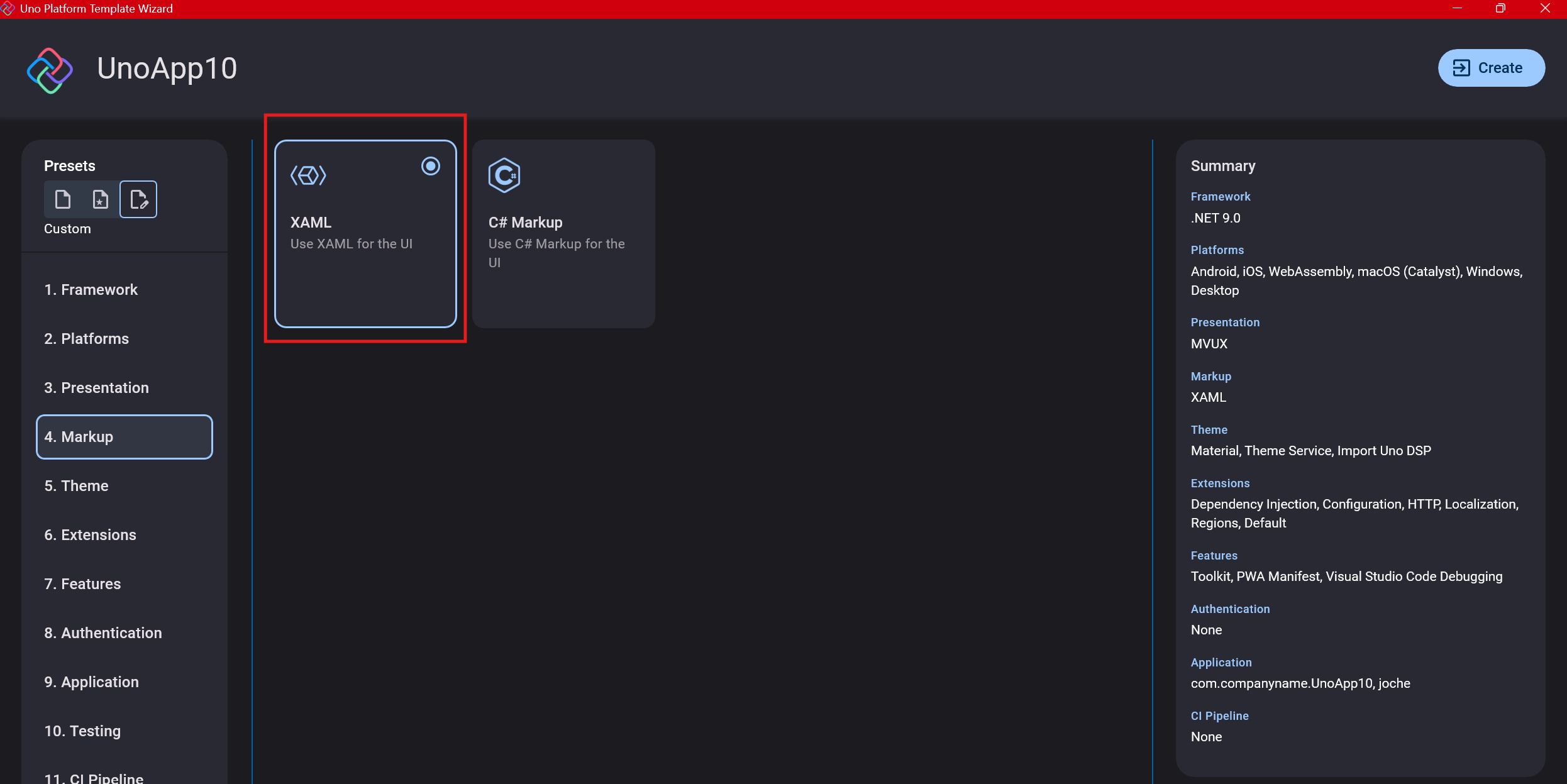
For markup, I recommend selecting XAML. In my first project, I tried using C# markup, which worked well until I reached some roadblocks I couldn’t overcome. I didn’t want to get stuck trying to solve one specific layout issue, so I switched. For beginners, I suggest starting with XAML.
Step 7: Theming
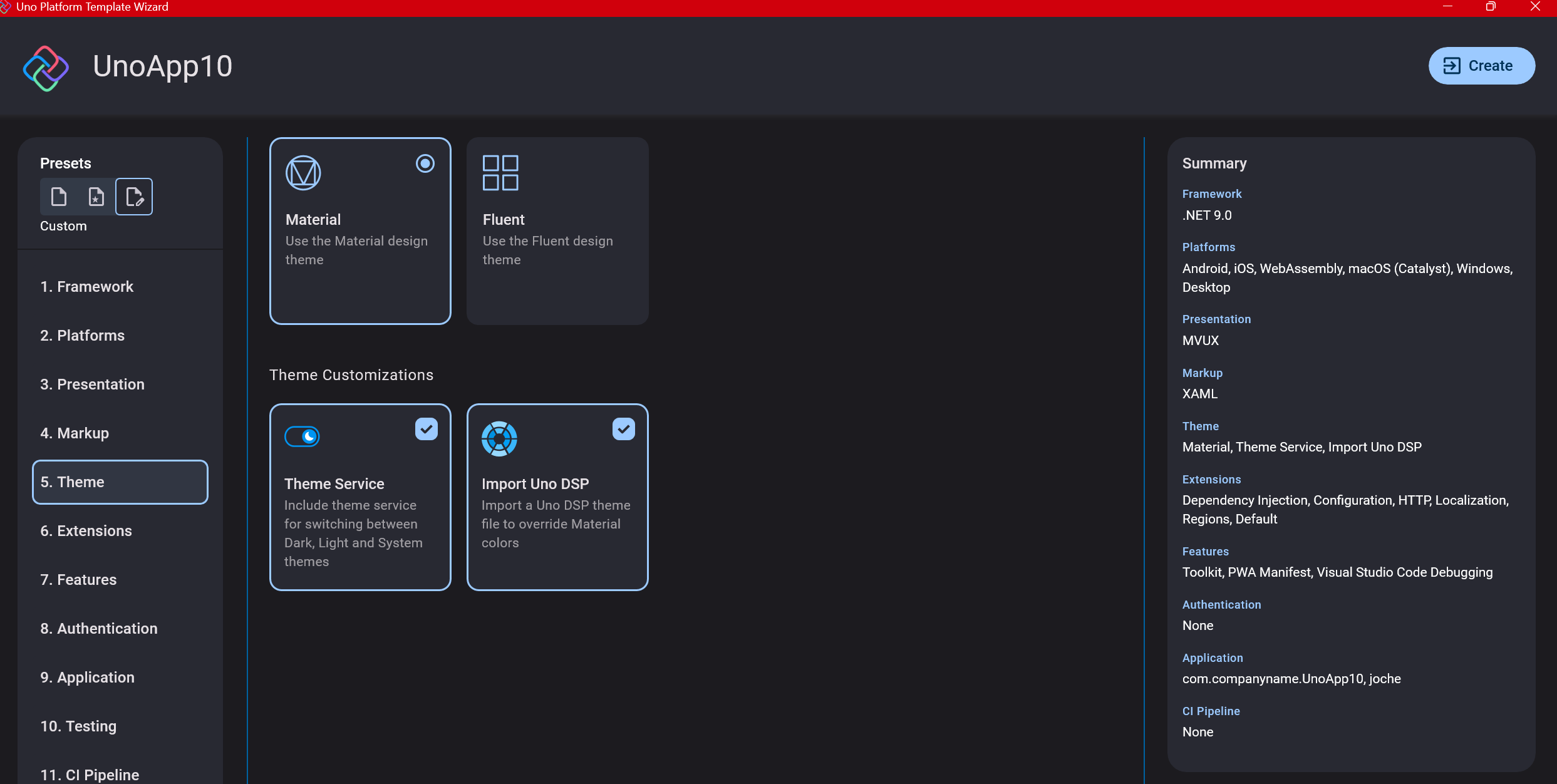
For theming, you’ll need to select a UI theme. I don’t have a strong preference here and typically stick with the defaults: using Material Design, the theme service, and importing Uno DSP.
Step 8: Extensions
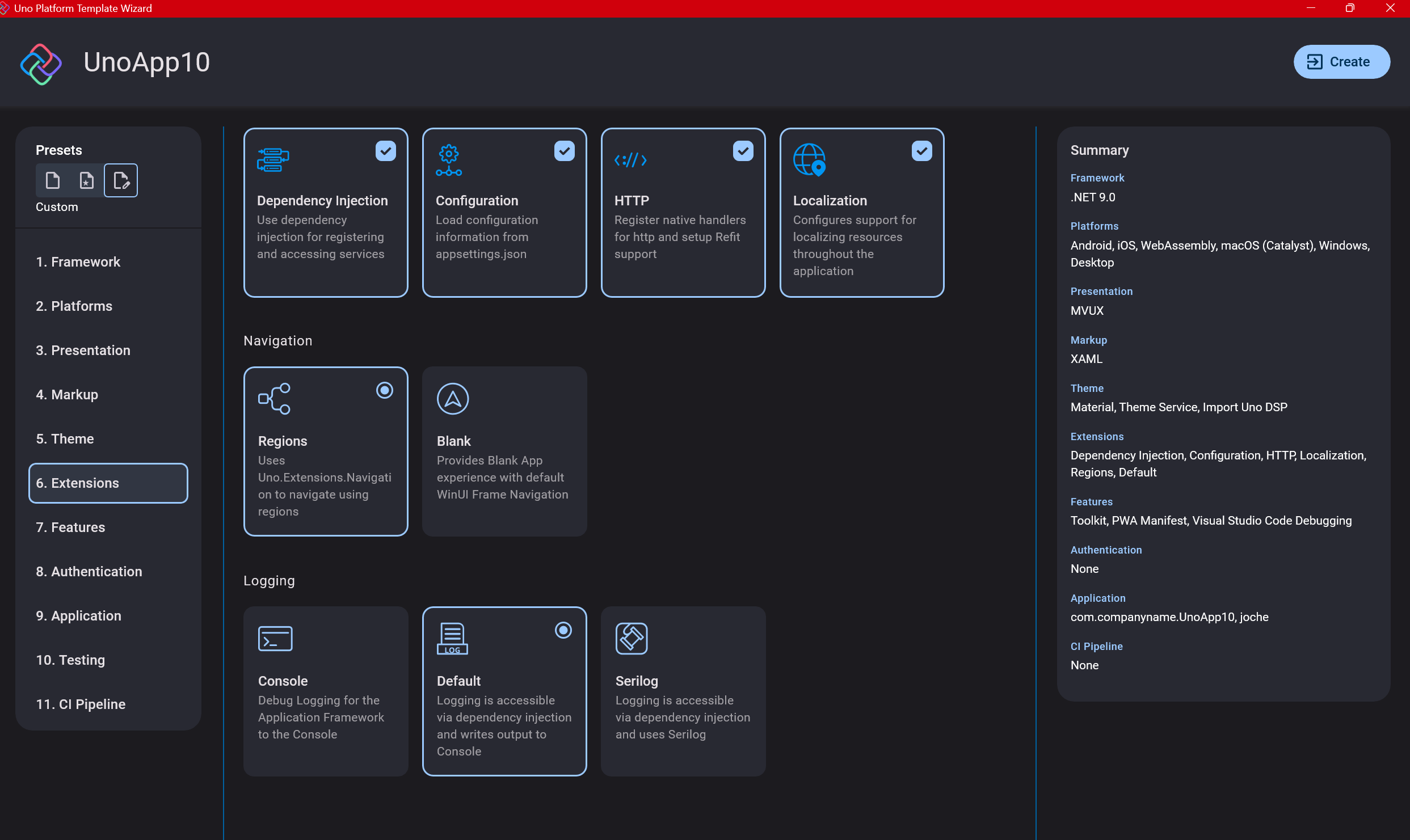
When selecting extensions to include, I recommend choosing almost all of them as they’re useful for modern application development. The only thing you might want to customize is the logging type (Console, Debug, or Serilog), depending on your previous experience. Generally, most applications will benefit from all the extensions offered.
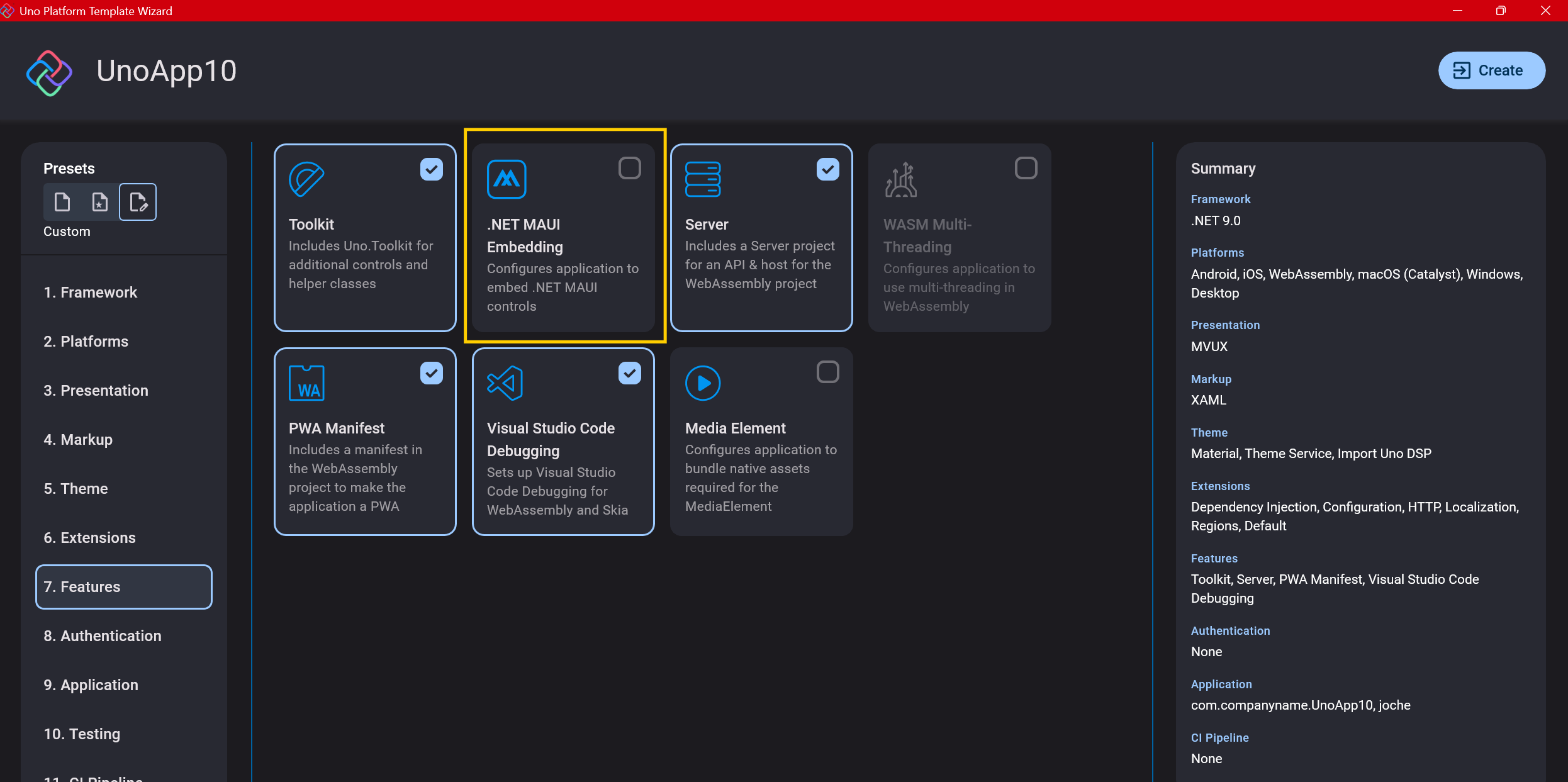
Step 9: Features
Next, you’ll select which features to include in your application. For my tests, I include everything except the MAUI embedding and the media element. Most features can be useful, and I’ll show in a future post how to set them up when discussing the solution structure.
Step 10: Authentication
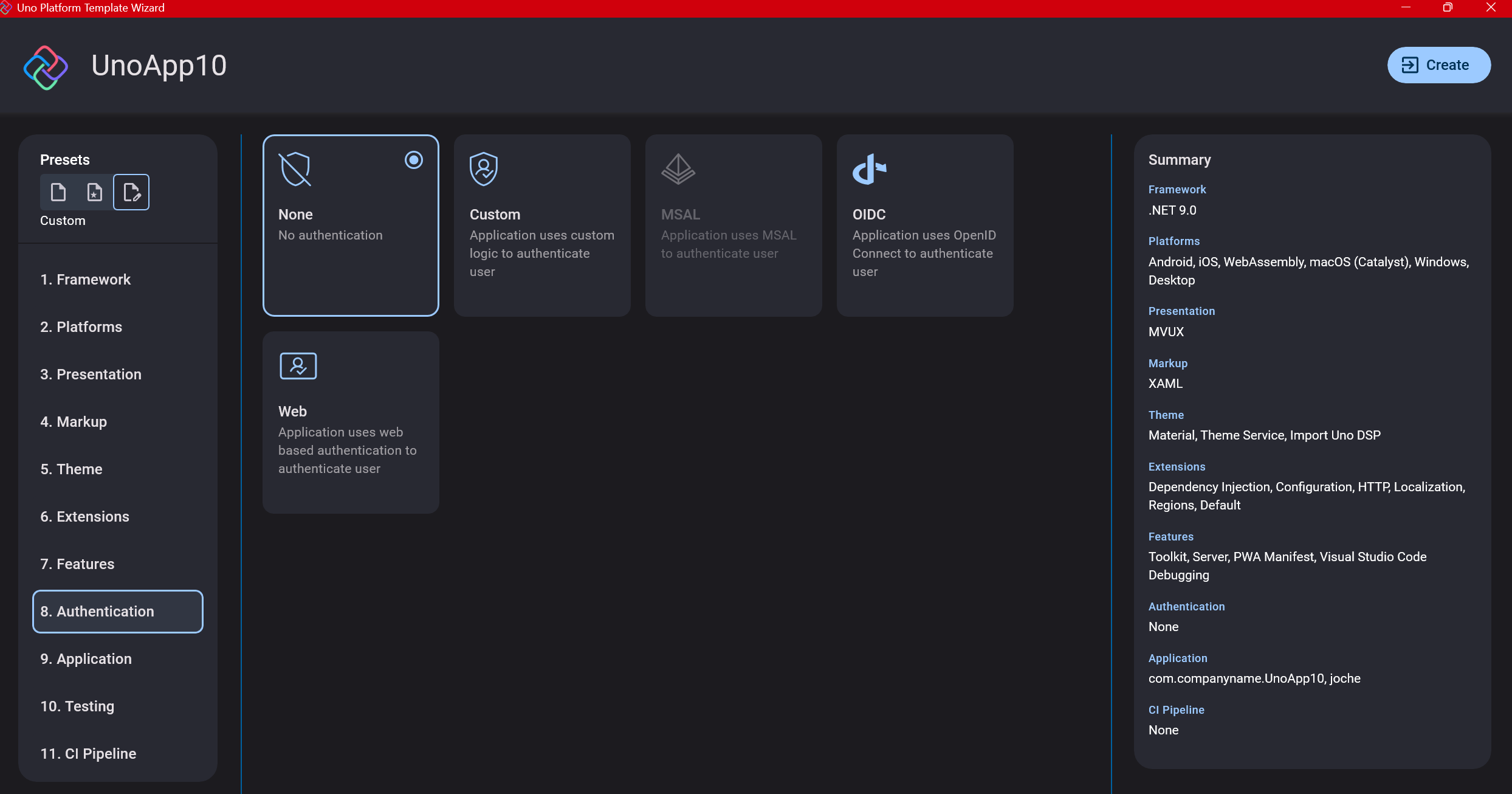
You can select “None” for authentication if you’re building test projects, but I chose “Custom” because I wanted to see how it works. In my case, I’m authenticating against DevExpress XAF REST API, but I’m also interested in connecting my test project to Azure B2C.
Step 11: Application ID
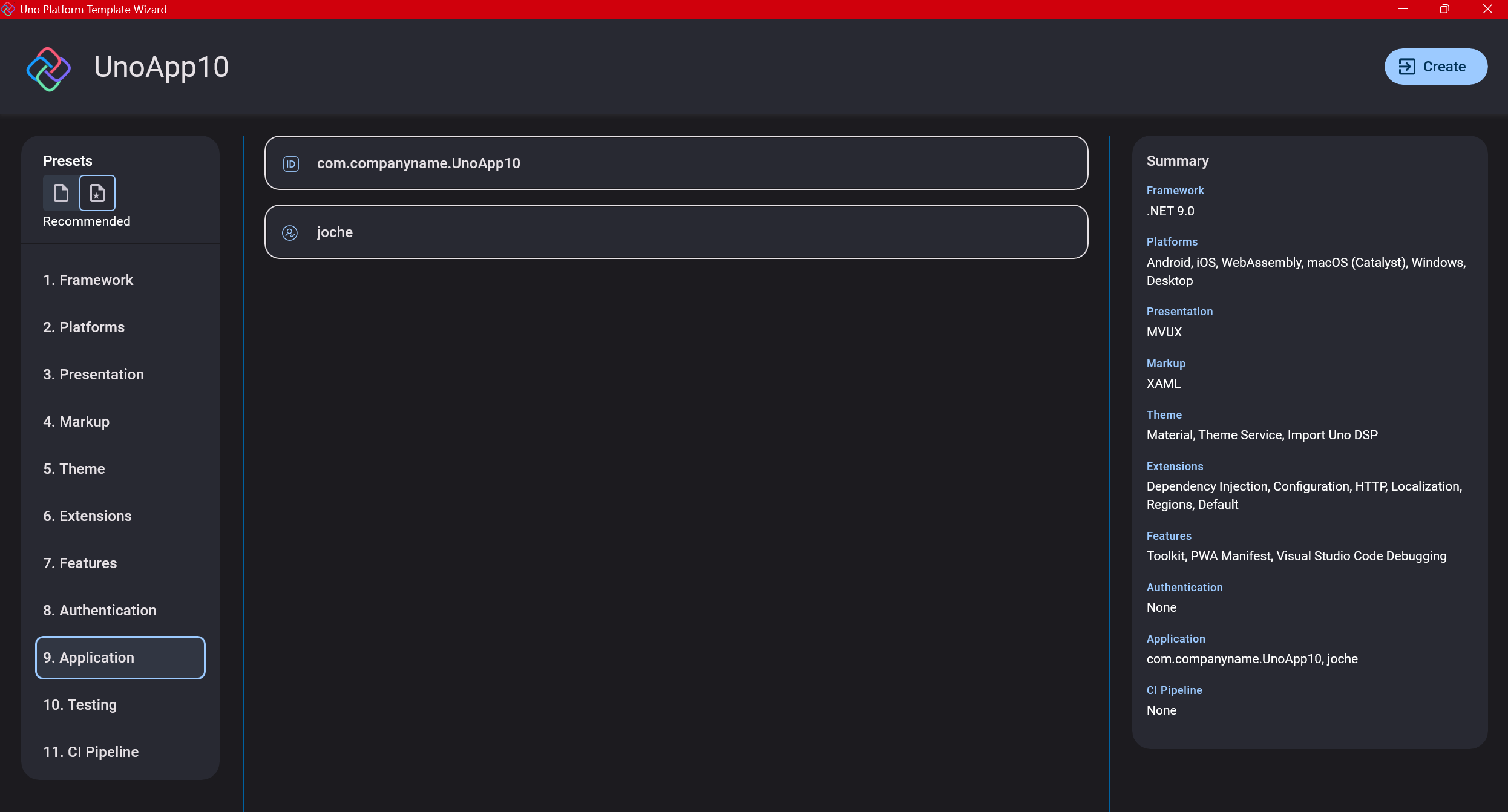
Next, you’ll need to provide an application ID. While I haven’t fully explored the purpose of this ID yet, I believe it’s needed when publishing applications to app stores like Google Play and the Apple App Store.
Step 12: Testing
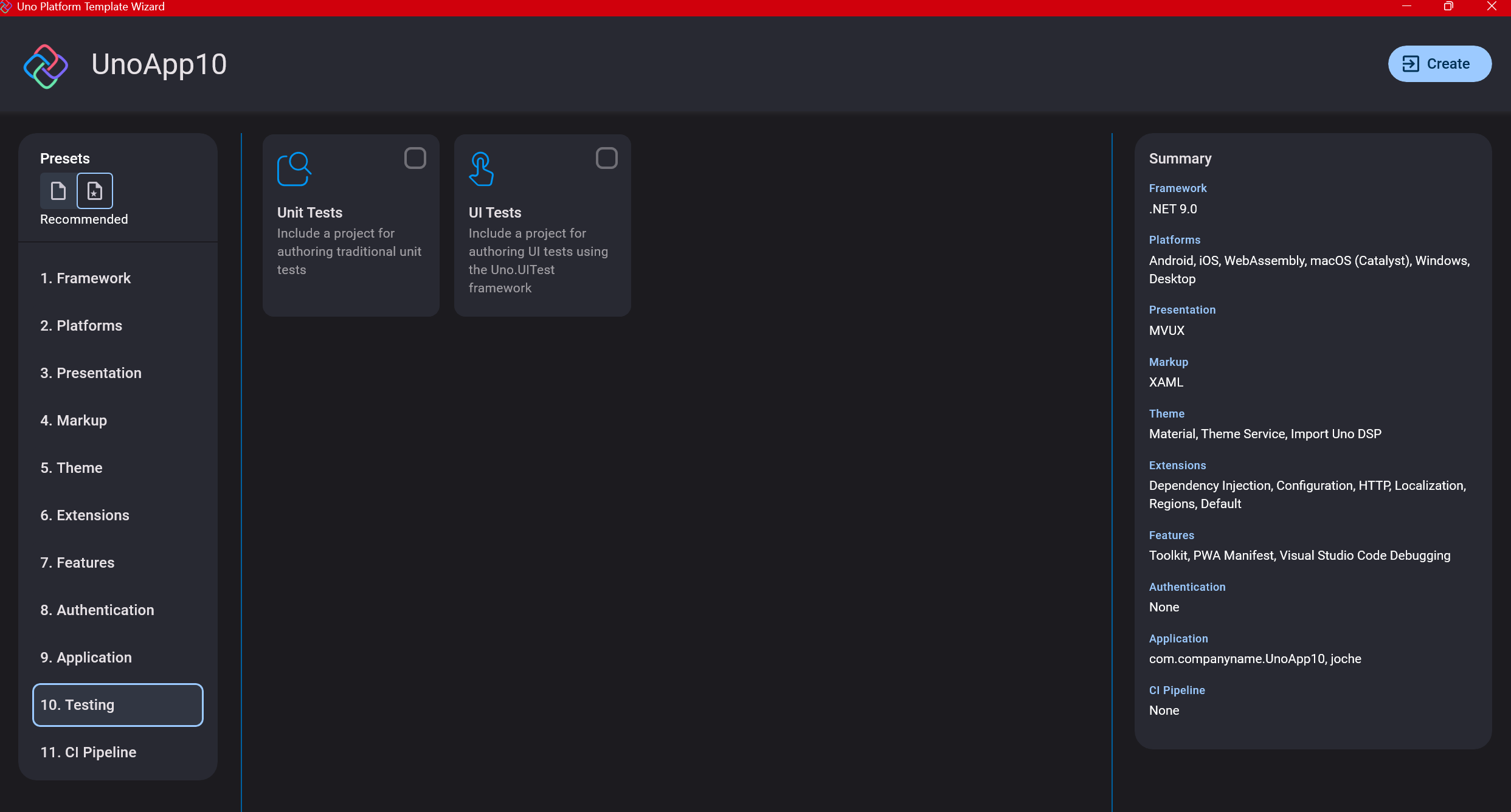
I’m a big fan of testing, particularly integration tests. While unit tests are essential when developing components, for business applications, integration tests that verify the flow are often sufficient.
Uno also offers UI testing capabilities, which I haven’t tried yet but am looking forward to exploring. In platform UI development, there aren’t many choices for UI testing, so having something built-in is fantastic.
Testing might seem like a waste of time initially, but once you have tests in place, you’ll save time in the future. With each iteration or new release, you can run all your tests to ensure everything works correctly. The time invested in creating tests upfront pays off during maintenance and updates.
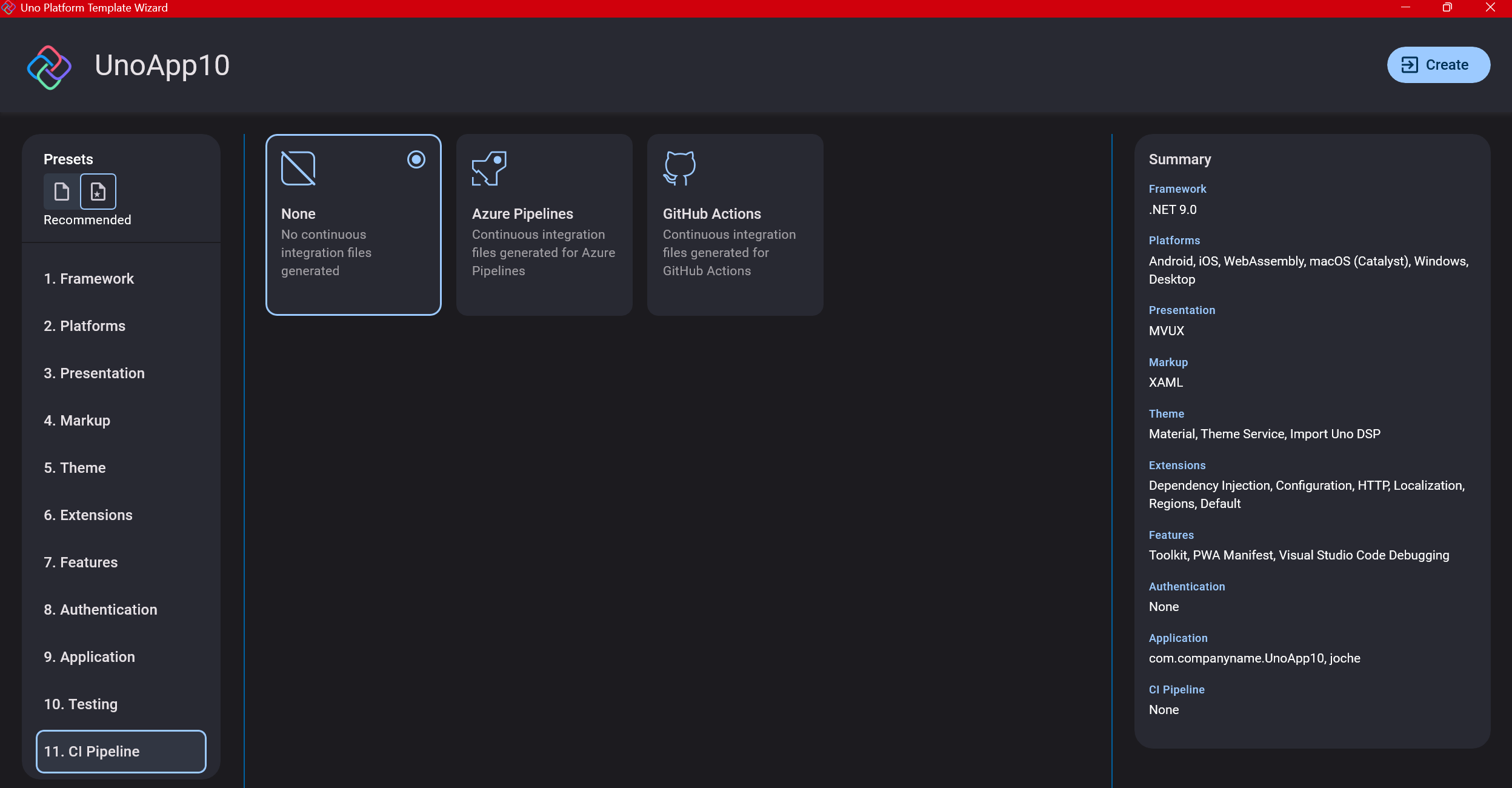
Step 13: CI Pipelines
The final step is about CI pipelines. If you’re building a test application, you don’t need to select anything. For production applications, you can choose Azure Pipelines or GitHub Actions based on your preferences. In my case, I’m not involved with CI pipeline configuration at my workplace, so I have limited experience in this area.
Conclusion
If you’ve made it this far, congratulations! You should now have a shiny new Uno Platform application in your IDE.
This post only covers the initial setup choices when creating a new Uno application. Your development path will differ based on the selections you’ve made, which can significantly impact how you write your code. Choose wisely and experiment with different combinations to see what works best for your needs.
During my learning journey with the Uno Platform, I’ve tried various settings—some worked well, others didn’t, but most will function if you understand what you’re doing. I’m still learning and taking a hands-on approach, relying on trial and error, occasional documentation checks, and GitHub Copilot assistance.
Thanks for reading and see you in the next post!
About Us
YouTube
https://www.youtube.com/c/JocheOjedaXAFXAMARINC
Our sites
Let’s discuss your XAF
https://www.udemy.com/course/microsoft-ai-extensions/
Our free A.I courses on Udemy
