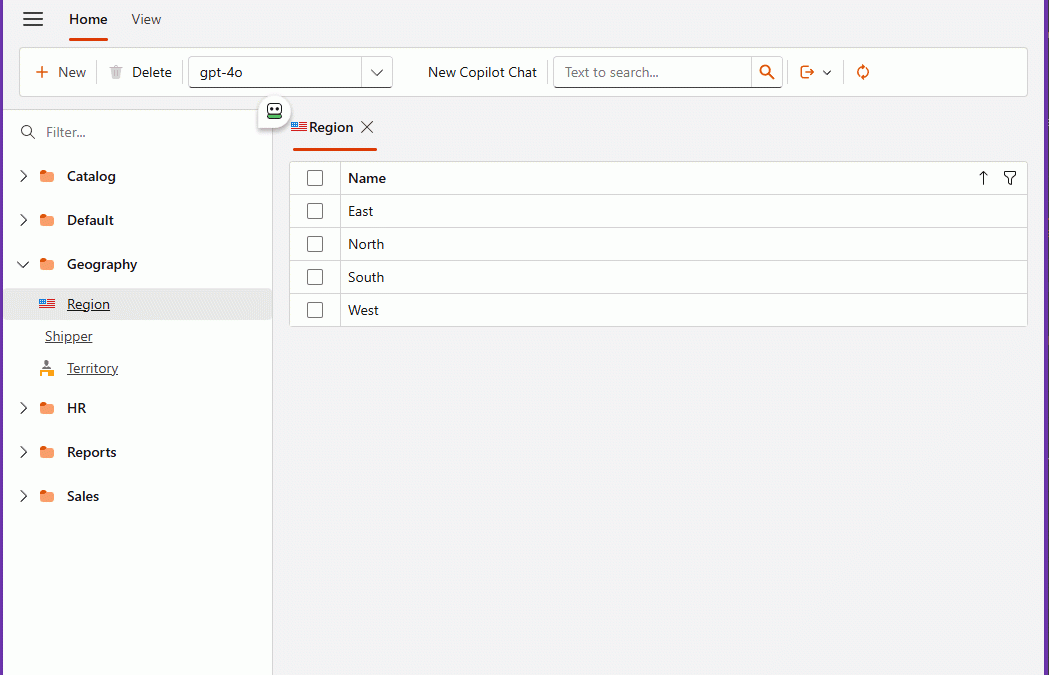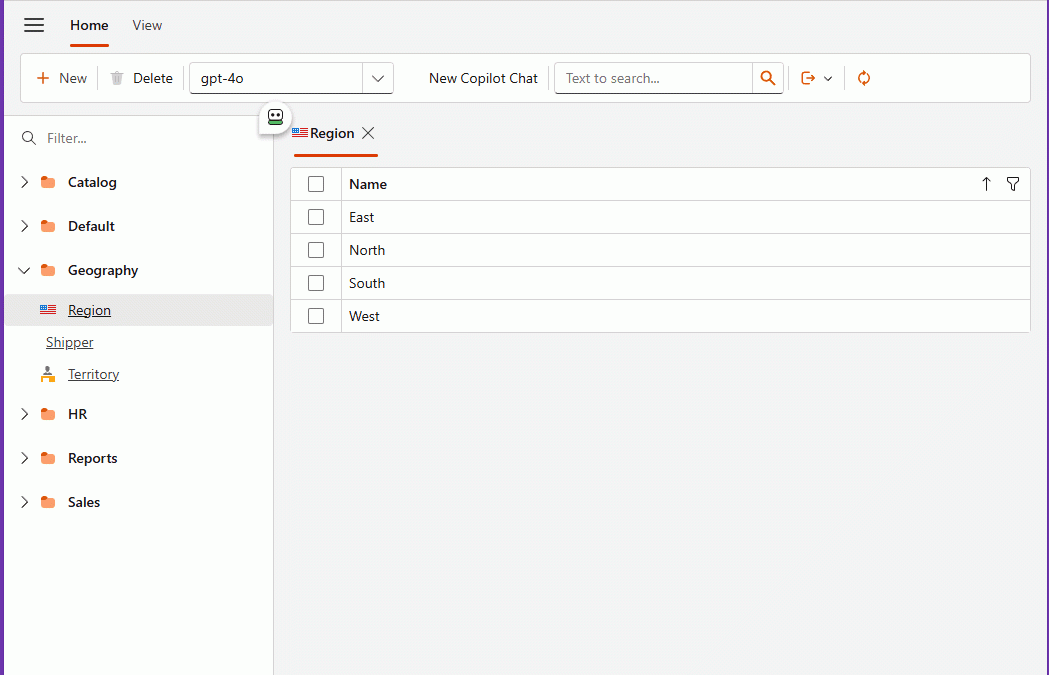
The Day I Integrated GitHub Copilot SDK Inside My XAF App (Part 2)
This guide covers how to integrate the GitHub Copilot SDK (GitHub.Copilot.SDK) into .NET applications and how to bridge it to the Microsoft.Extensions.AI.IChatClient abstraction so that any UI component — DevExpress DxAIChat, a Blazor chat page, a WinForms control, or any consumer that depends on IChatClient — can route messages through GitHub Copilot’s LLM backend transparently.
The guide walks through every layer of the SDK: client lifecycle, session management, event-driven streaming, tool/function calling with AIFunctionFactory, hooks, permissions, user input requests, context compaction, skills, MCP servers, custom agents, and finally the IChatClient adapter pattern that makes the SDK a drop-in backend for Microsoft.Extensions.AI.
What you will be able to do after this guide:
- Create and manage a
CopilotClientlifecycle (start, ping, status, auth, list models, stop, dispose). - Open stateful sessions with model selection, streaming, and system messages.
- Register custom C# tools (
AIFunction) that the model calls autonomously. - Intercept tool calls with pre/post hooks and permission handlers.
- Request user input from the model via
OnUserInputRequest. - Enable infinite sessions with context compaction.
- Load skill directories (
SKILL.md) to shape model behavior. - Configure MCP servers and custom agents on a session.
- Wrap
CopilotChatServicein anIChatClientadapter (CopilotChatClient) for seamless DI integration. - Register everything through a single
AddCopilotSdk()extension method.
[[[MERMAIDBLOCK0]]]
Prerequisites
| Requirement | Minimum Version | Notes |
|---|---|---|
| .NET SDK | 8.0 | .NET 9 / 10 also supported |
GitHub.Copilot.SDK |
0.1.23 | The official GitHub Copilot SDK NuGet package |
Microsoft.Extensions.AI |
latest | The IChatClient abstraction from Microsoft |
| GitHub authentication | — | Either VS Code / GitHub CLI logged-in user, or a GitHub Personal Access Token |
| IDE | Visual Studio 2022 17.8+ or VS Code with C# Dev Kit | |
| OS | Windows, macOS, or Linux |
Optional but recommended:
| Package | Version | Purpose |
|---|---|---|
Microsoft.Extensions.Logging.Console |
latest | Console logging for the SDK |
Markdig |
0.38+ | Server-side Markdown → HTML rendering |
HtmlSanitizer |
8.* | Prevent XSS in rendered HTML |
Quick Start — Console App
1. Create a console project
dotnet new console -n MyCopilotApp
cd MyCopilotApp
2. Install packages
dotnet add package GitHub.Copilot.SDK --version 0.1.23
dotnet add package Microsoft.Extensions.AI
dotnet add package Microsoft.Extensions.Logging.Console
3. Minimal Program.cs
using GitHub.Copilot.SDK;
using Microsoft.Extensions.Logging;

using var loggerFactory = LoggerFactory.Create(b =>
    b.AddConsole().SetMinimumLevel(LogLevel.Warning));
var logger = loggerFactory.CreateLogger<CopilotClient>();

// 1. Create the client
var client = new CopilotClient(new CopilotClientOptions
{
    UseLoggedInUser = true,   // Use VS Code / gh CLI logged-in user
    Logger = logger
});

// 2. Start
await client.StartAsync();
Console.WriteLine($"State: {client.State}");

// 3. Create a session and ask a question
await using var session = await client.CreateSessionAsync(new SessionConfig
{
    Model = "gpt-4o"
});

var answer = await session.SendAndWaitAsync(
    new MessageOptions { Prompt = "What is the capital of France?" });
Console.WriteLine($"Answer: {answer?.Data.Content}");

// 4. Cleanup
await client.StopAsync();
await client.DisposeAsync();
4. Run
dotnet run
Prerequisite: You must be logged in to GitHub via VS Code or
gh auth login.
Project Structure (.csproj)
<Project Sdk="Microsoft.NET.Sdk">
  <PropertyGroup>
    <OutputType>Exe</OutputType>
    <TargetFramework>net8.0</TargetFramework>
    <ImplicitUsings>enable</ImplicitUsings>
    <Nullable>enable</Nullable>
  </PropertyGroup>
  <ItemGroup>
    <PackageReference Include="GitHub.Copilot.SDK" Version="0.1.23" />
    <PackageReference Include="Microsoft.Extensions.AI" Version="*" />
    <PackageReference Include="Microsoft.Extensions.Logging.Console" Version="*" />
  </ItemGroup>
</Project>
Core Concepts
1. CopilotClient — The Entry Point
CopilotClient manages the underlying Copilot process (Stdio transport), authentication, and model discovery. You must start it before creating any sessions.
var client = new CopilotClient(new CopilotClientOptions
{
    UseLoggedInUser = true,          // Use VS Code / gh CLI auth
    // GithubToken = "ghp_...",       // Or use a PAT directly
    // CliPath = "/path/to/copilot",  // Custom CLI binary path
    Logger = logger
});
Client Lifecycle
Created → Starting → Running → Stopping → Stopped
                                  ↑ ForceStop (immediate)
| Method | Purpose |
|---|---|
StartAsync() |
Start the Copilot process, establish connection |
PingAsync(message) |
Verify the connection is alive |
GetStatusAsync() |
Get version and protocol version |
GetAuthStatusAsync() |
Check auth type and authentication status |
ListModelsAsync() |
List all available models with capabilities |
StopAsync() |
Graceful shutdown — waits for cleanup |
ForceStopAsync() |
Hard kill — skips cleanup |
DisposeAsync() |
Release all resources (always call after stop) |
Authentication Options
| Option | How |
|---|---|
| VS Code logged-in user | Set UseLoggedInUser = true (default). Requires being logged into GitHub in VS Code or via gh auth login. |
| GitHub Personal Access Token | Set GithubToken = "ghp_...". Overrides UseLoggedInUser. |
| Custom CLI path | Set CliPath to point to a custom Copilot CLI binary. |
Listing Models
var models = await client.ListModelsAsync();
foreach (var m in models)
{
    Console.WriteLine($"{m.Id,-35} {m.Name,-25} {m.Capabilities}");
}
2. CopilotSession — Stateful Conversations
A session represents a single conversation. Sessions are stateful — the model remembers all previous messages.
await using var session = await client.CreateSessionAsync(new SessionConfig
{
    Model = "gpt-4o",        // Which model to use
    Streaming = true,         // Enable streaming deltas
});
SessionConfig Properties
| Property | Type | Description |
|---|---|---|
Model |
string |
Model ID (e.g., "gpt-4o", "claude-sonnet-4") |
Streaming |
bool |
Enable AssistantMessageDeltaEvent streaming |
Tools |
List<AIFunction> |
Custom tools the model can call |
SystemMessage |
SystemMessageConfig |
Custom system prompt (Append or Replace) |
Hooks |
SessionHooks |
Pre/post tool-use hooks |
OnPermissionRequest |
Func<...> |
Permission handler for write/run operations |
OnUserInputRequest |
Func<...> |
Handler when the model asks the user a question |
InfiniteSessions |
InfiniteSessionConfig |
Enable context compaction for long conversations |
SkillDirectories |
List<string> |
Directories containing SKILL.md files |
DisabledSkills |
List<string> |
Skills to disable by name |
AvailableTools |
List<string> |
Allowlist of built-in tool names |
ExcludedTools |
List<string> |
Denylist of built-in tool names |
McpServers |
Dictionary<string, object> |
MCP server configurations |
CustomAgents |
List<CustomAgentConfig> |
Custom agent configurations |
Sending Messages
| Method | Behavior |
|---|---|
SendAsync(options) |
Fire-and-forget — returns a message ID immediately. Response arrives via events. |
SendAndWaitAsync(options) |
Blocks until the model finishes (SessionIdleEvent). Returns the final AssistantMessageEvent. |
// Fire-and-forget
var messageId = await session.SendAsync(new MessageOptions { Prompt = "Hello" });

// Blocking
var reply = await session.SendAndWaitAsync(new MessageOptions { Prompt = "Hello" });
Console.WriteLine(reply?.Data.Content);
Event Subscription
Subscribe to all session events using session.On():
var subscription = session.On(evt =>
{
    switch (evt)
    {
        case AssistantMessageDeltaEvent delta:
            Console.Write(delta.Data.DeltaContent);    // streaming token
            break;
        case AssistantMessageEvent message:
            // Complete message
            break;
        case SessionIdleEvent:
            // Model's turn is complete
            break;
        case SessionErrorEvent error:
            Console.WriteLine($"Error: {error.Data?.Message}");
            break;
    }
});

// Later: unsubscribe
subscription.Dispose();
Event Types
| Event | When |
|---|---|
AssistantMessageDeltaEvent |
Individual streaming token (when Streaming = true) |
AssistantMessageEvent |
Model produces a complete message |
SessionIdleEvent |
Model’s turn is complete |
SessionErrorEvent |
An error occurred during the turn |
SessionResumeEvent |
Session was resumed via ResumeSessionAsync |
SessionCompactionStartEvent |
Context compaction started (infinite sessions) |
SessionCompactionCompleteEvent |
Context compaction finished |
Session Resume
You can reconnect to a previous session to continue the conversation:
// Create and use a session
var session1 = await client.CreateSessionAsync();
var sessionId = session1.SessionId;
await session1.SendAndWaitAsync(new MessageOptions { Prompt = "Remember: 42" });

// Resume later
var session2 = await client.ResumeSessionAsync(sessionId);
var answer = await session2.SendAndWaitAsync(
    new MessageOptions { Prompt = "What number did I mention?" });
// → "42"
System Messages
Configure a system prompt to control model behavior:
// Append mode — adds after the default Copilot system prompt
new SessionConfig
{
    SystemMessage = new SystemMessageConfig
    {
        Mode = SystemMessageMode.Append,
        Content = "Always end responses with 'Have a nice day!'"
    }
}

// Replace mode — completely overrides the system prompt
new SessionConfig
{
    SystemMessage = new SystemMessageConfig
    {
        Mode = SystemMessageMode.Replace,
        Content = "You are an assistant called Testy McTestface. Reply succinctly."
    }
}
| Mode | Behavior |
|---|---|
Append |
Your content is added after the default Copilot system prompt |
Replace |
Your content completely replaces the default system prompt |
3. Custom Tools — AIFunction
Tools extend the model’s capabilities by letting it call your C# code. The SDK uses Microsoft.Extensions.AI‘s AIFunctionFactory.Create to turn regular methods into callable tools.
How Tools Work
  You (host)                     Copilot Model
  ──────────                     ────────────
  Register tools on session  →   Model sees tool schemas
  Send prompt                →   Model processes prompt
                             ←   Model calls tool (tool_use event)
  SDK executes your C# code
  SDK returns result         →   Model incorporates result
                             ←   Model sends final response
Simple Tool
[Description("Encrypts a string by converting it to uppercase")]
static string EncryptString([Description("String to encrypt")] string input)
    => input.ToUpperInvariant();

var session = await client.CreateSessionAsync(new SessionConfig
{
    Tools = [AIFunctionFactory.Create(EncryptString, "encrypt_string")]
});

var answer = await session.SendAndWaitAsync(
    new MessageOptions { Prompt = "Encrypt: Hello World" });
// Tool is called automatically, response includes "HELLO WORLD"
Key pattern: Use [Description] on the method and on each parameter. Supply (method, name) to AIFunctionFactory.Create.
Multiple Tools on One Session
var session = await client.CreateSessionAsync(new SessionConfig
{
    Tools =
    [
        AIFunctionFactory.Create(GetWeather, "get_weather"),
        AIFunctionFactory.Create(GetTime, "get_time"),
    ]
});

[Description("Gets the current weather for a city")]
static string GetWeather([Description("City name")] string city)
    => $"Weather in {city}: 22°C, partly cloudy";

[Description("Gets the current time for a city")]
static string GetTime([Description("City name")] string city)
    => $"Current time in {city}: {DateTime.UtcNow:HH:mm} UTC";
Complex Input/Output Types
Use C# records for structured input and output. Add a JsonSerializerContext for NativeAOT safety:
record DbQueryOptions(string Table, int[] Ids, bool SortAscending);
record City(int CountryId, string CityName, int Population);

[JsonSourceGenerationOptions(JsonSerializerDefaults.Web)]
[JsonSerializable(typeof(DbQueryOptions))]
[JsonSerializable(typeof(City[]))]
partial class DemoJsonContext : JsonSerializerContext;

City[] PerformDbQuery(DbQueryOptions query, AIFunctionArguments rawArgs)
{
    // Access ToolInvocation metadata
    var invocation = (ToolInvocation)rawArgs.Context![typeof(ToolInvocation)]!;
    // invocation.SessionId, invocation.ToolCallId, etc.
    return [new(1, "Madrid", 3223000)];
}

var tool = AIFunctionFactory.Create(PerformDbQuery, "db_query",
    serializerOptions: DemoJsonContext.Default.Options);
Tool Error Handling
When a tool throws an exception, the SDK catches it and does NOT leak the error message to the model. The model only sees a generic failure:
var failingTool = AIFunctionFactory.Create(
    () => { throw new Exception("Secret error"); },
    "get_location",
    "Gets the user's location");

// Model will NOT see "Secret error" — safe by default
AvailableTools / ExcludedTools Filters
Control which built-in Copilot tools are available in the session:
// Allowlist — only these built-in tools
new SessionConfig { AvailableTools = ["view", "edit"] }

// Denylist — exclude these built-in tools
new SessionConfig { ExcludedTools = ["view"] }
4. Hooks — Pre/Post Tool-Use Interception
Hooks let you intercept tool calls before and after execution:
PreToolUse Hook — Allow or Deny
var session = await client.CreateSessionAsync(new SessionConfig
{
    Tools = [myTool],
    Hooks = new SessionHooks
    {
        OnPreToolUse = (input, invocation) =>
        {
            Console.WriteLine($"Tool: {input.ToolName}, Session: {invocation.SessionId}");
            // Return "allow" or "deny"
            return Task.FromResult<PreToolUseHookOutput?>(
                new PreToolUseHookOutput { PermissionDecision = "allow" });
        }
    }
});
PostToolUse Hook — Inspect Results
Hooks = new SessionHooks
{
    OnPostToolUse = (input, invocation) =>
    {
        var result = input.ToolResult?.ToString();
        Console.WriteLine($"Tool {input.ToolName} returned: {result}");
        return Task.FromResult<PostToolUseHookOutput?>(null);
    }
}
Both Hooks Together
Hooks = new SessionHooks
{
    OnPreToolUse = (input, invocation) =>
    {
        Console.WriteLine($"[PRE]  → {input.ToolName}");
        return Task.FromResult<PreToolUseHookOutput?>(
            new PreToolUseHookOutput { PermissionDecision = "allow" });
    },
    OnPostToolUse = (input, invocation) =>
    {
        Console.WriteLine($"[POST] ← {input.ToolName}");
        return Task.FromResult<PostToolUseHookOutput?>(null);
    }
}
Deny Tool Execution
OnPreToolUse = (input, invocation) =>
{
    return Task.FromResult<PreToolUseHookOutput?>(
        new PreToolUseHookOutput { PermissionDecision = "deny" });
}
// The model will explain it couldn't access the tool
5. Permissions — Write/Run Authorization
Permission handlers control whether the model can perform write operations (file edits, command execution):
var session = await client.CreateSessionAsync(new SessionConfig
{
    OnPermissionRequest = (request, invocation) =>
    {
        Console.WriteLine($"Permission: Kind={request.Kind}, ToolCallId={request.ToolCallId}");
        // Return "approved" or "denied-interactively-by-user"
        return Task.FromResult(new PermissionRequestResult { Kind = "approved" });
    }
});
Permission Result Values
| Kind | Effect |
|---|---|
"approved" |
Allow the operation |
"denied-interactively-by-user" |
Block the operation |
Key behaviors:
– If no OnPermissionRequest handler is set, the session works normally — permissions are only triggered for write/run operations.
– If the handler throws an exception, the SDK handles it gracefully — permission is denied automatically.
– Permission handlers can be set on ResumeSessionConfig too, so resumed sessions can have different permission policies.
6. User Input Requests — Model Asks the User
The model can ask the user questions via the ask_user built-in tool. You handle these with OnUserInputRequest:
var session = await client.CreateSessionAsync(new SessionConfig
{
    OnUserInputRequest = (request, invocation) =>
    {
        Console.WriteLine($"Question: {request.Question}");

        // Choice-based prompt
        if (request.Choices is { Count: > 0 })
        {
            Console.WriteLine($"Choices: [{string.Join(", ", request.Choices)}]");
            return Task.FromResult(new UserInputResponse
            {
                Answer = request.Choices[0],   // Auto-select first
                WasFreeform = false
            });
        }

        // Freeform input
        return Task.FromResult(new UserInputResponse
        {
            Answer = "My answer",
            WasFreeform = true
        });
    }
});
UserInputRequest Properties
| Property | Type | Description |
|---|---|---|
Question |
string |
The question the model is asking |
Choices |
List<string>? |
Optional choices for the user (if null, freeform input) |
UserInputResponse Properties
| Property | Type | Description |
|---|---|---|
Answer |
string |
The user’s answer |
WasFreeform |
bool |
Whether the answer was typed freely vs. selected from choices |
7. Infinite Sessions & Context Compaction
For long conversations, enable infinite sessions to automatically compact the context when it gets too large:
var session = await client.CreateSessionAsync(new SessionConfig
{
    InfiniteSessions = new InfiniteSessionConfig
    {
        Enabled = true,
        BackgroundCompactionThreshold = 0.005,  // 0.5% → start background compaction
        BufferExhaustionThreshold = 0.01         // 1%   → block and compact
    }
});
Compaction Events
Subscribe to compaction events to monitor when context is being compacted:
session.On(evt =>
{
    if (evt is SessionCompactionStartEvent)
        Console.WriteLine("Compaction started!");
    if (evt is SessionCompactionCompleteEvent c)
        Console.WriteLine($"Compaction done: removed {c.Data.TokensRemoved} tokens, success={c.Data.Success}");
});
Key behavior: The model summarizes earlier messages and removes old tokens. After compaction, the session continues to work — context is preserved via the summary.
8. Skills — SKILL.md Files
Skills shape model behavior by loading instruction files from directories:
SKILL.md Format
---
name: my-skill
description: A skill that adds custom behavior
---

# My Skill Instructions

Always respond in formal English.
Include a table of contents in long answers.
Each skill lives in its own subdirectory with a SKILL.md file:
skills-dir/
  my-skill/
    SKILL.md
  another-skill/
    SKILL.md
Loading Skills
var session = await client.CreateSessionAsync(new SessionConfig
{
    SkillDirectories = ["/path/to/skills-dir"]
});
Disabling Skills
var session = await client.CreateSessionAsync(new SessionConfig
{
    SkillDirectories = ["/path/to/skills-dir"],
    DisabledSkills = ["my-skill"]   // Disable by name from frontmatter
});
9. MCP Servers — Model Context Protocol
Configure MCP servers that provide additional tools to the session:
var session = await client.CreateSessionAsync(new SessionConfig
{
    McpServers = new Dictionary<string, object>
    {
        ["my-server"] = new McpLocalServerConfig
        {
            Type = "local",
            Command = "npx",
            Args = ["-y", "@my-org/mcp-server"],
            Tools = ["*"]   // Expose all tools from this server
        }
    }
});
McpLocalServerConfig Properties
| Property | Type | Description |
|---|---|---|
Type |
string |
Server type — typically "local" |
Command |
string |
Command to start the MCP server |
Args |
List<string> |
Arguments for the command |
Tools |
List<string> |
Which tools to expose (["*"] for all) |
Multiple MCP Servers
McpServers = new Dictionary<string, object>
{
    ["filesystem-server"] = new McpLocalServerConfig { ... },
    ["database-server"] = new McpLocalServerConfig { ... }
}
10. Custom Agents
Configure custom agents with their own prompts, tools, and MCP servers:
var session = await client.CreateSessionAsync(new SessionConfig
{
    CustomAgents = new List<CustomAgentConfig>
    {
        new CustomAgentConfig
        {
            Name = "business-analyst",
            DisplayName = "Business Analyst Agent",
            Description = "Specialized in business analysis",
            Prompt = "You are a business analyst. Focus on data-driven insights.",
            Infer = true   // Model decides when to use this agent
        }
    }
});
CustomAgentConfig Properties
| Property | Type | Description |
|---|---|---|
Name |
string |
Unique agent identifier |
DisplayName |
string |
Human-readable name |
Description |
string |
What the agent does |
Prompt |
string |
System instructions for the agent |
Tools |
List<string>? |
Restricted tool set (e.g., ["bash", "edit"]) |
McpServers |
Dictionary<string, object>? |
Agent-specific MCP servers |
Infer |
bool |
If true, model decides when to invoke the agent |
Agent with Restricted Tools
new CustomAgentConfig
{
    Name = "devops-agent",
    Tools = ["bash", "edit"],   // Only these tools available
    Infer = true
}
Agent with its Own MCP Servers
new CustomAgentConfig
{
    Name = "data-agent",
    McpServers = new Dictionary<string, object>
    {
        ["agent-db"] = new McpLocalServerConfig
        {
            Type = "local",
            Command = "npx",
            Args = ["-y", "@my-org/db-server"],
            Tools = ["*"]
        }
    }
}
Combined MCP + Agents
new SessionConfig
{
    McpServers = new Dictionary<string, object>
    {
        ["shared-server"] = new McpLocalServerConfig { ... }
    },
    CustomAgents = new List<CustomAgentConfig>
    {
        new CustomAgentConfig { Name = "coordinator", ... }
    }
}
MCP & Agents on Session Resume
MCP servers and agents can be added when resuming a session:
var session2 = await client.ResumeSessionAsync(sessionId, new ResumeSessionConfig
{
    McpServers = new Dictionary<string, object>
    {
        ["resume-server"] = new McpLocalServerConfig { ... }
    },
    CustomAgents = new List<CustomAgentConfig>
    {
        new CustomAgentConfig { Name = "resume-agent", ... }
    }
});
The IChatClient Adapter Pattern
The GitHub Copilot SDK uses its own CopilotClient → CopilotSession → events model. To make it compatible with Microsoft.Extensions.AI.IChatClient (which DevExpress DxAIChat, AIChatControl, and other UI components consume), you need an adapter layer.
Architecture
[[[MERMAIDBLOCK1]]]
Step 1 — CopilotOptions
A simple options class bound to appsettings.json:
public sealed class CopilotOptions
{
    public const string SectionName = "Copilot";

    public string Model { get; set; } = "gpt-4o";
    public string? GithubToken { get; set; }
    public string? CliPath { get; set; }
    public bool UseLoggedInUser { get; set; } = true;
    public bool Streaming { get; set; } = true;
}
appsettings.json:
{
  "Copilot": {
    "Model": "gpt-4o",
    "UseLoggedInUser": true
  }
}
Step 2 — CopilotChatService
Wraps CopilotClient with lazy initialization, session creation per request, event-driven response collection, tool wiring, and system message support:
public sealed class CopilotChatService : IAsyncDisposable
{
    private readonly CopilotClient _client;
    private readonly CopilotOptions _options;
    private readonly ILogger<CopilotChatService> _logger;
    private readonly SemaphoreSlim _startLock = new(1, 1);
    private bool _started;

    /// <summary>Runtime-changeable model selection.</summary>
    public string CurrentModel
    {
        get => _options.Model;
        set => _options.Model = value;
    }

    /// <summary>Custom tools exposed to the Copilot SDK.</summary>
    public IReadOnlyList<AIFunction>? Tools { get; set; }

    /// <summary>Optional system message appended to the session.</summary>
    public string? SystemMessage { get; set; }

    public CopilotChatService(
        IOptions<CopilotOptions> optionsAccessor,
        ILogger<CopilotChatService> logger)
    {
        _options = optionsAccessor?.Value ?? new CopilotOptions();
        _logger = logger;
        _client = new CopilotClient(new CopilotClientOptions
        {
            CliPath = string.IsNullOrWhiteSpace(_options.CliPath) ? null : _options.CliPath,
            GithubToken = string.IsNullOrWhiteSpace(_options.GithubToken) ? null : _options.GithubToken,
            UseLoggedInUser = string.IsNullOrWhiteSpace(_options.GithubToken)
                              && _options.UseLoggedInUser,
            Logger = logger
        });
    }

    private async Task EnsureStartedAsync()
    {
        if (_started) return;
        await _startLock.WaitAsync().ConfigureAwait(false);
        try
        {
            if (_started) return;
            await _client.StartAsync().ConfigureAwait(false);
            _started = true;
        }
        finally { _startLock.Release(); }
    }

    public async Task<string> AskAsync(
        string prompt, CancellationToken cancellationToken = default)
    {
        ArgumentException.ThrowIfNullOrWhiteSpace(prompt);
        await EnsureStartedAsync().ConfigureAwait(false);

        // ── Build session config ──────────────────────────────
        var config = new SessionConfig
        {
            Model = _options.Model,
            Streaming = true,
        };
        if (Tools is { Count: > 0 })
            config.Tools = Tools.ToList();
        if (!string.IsNullOrWhiteSpace(SystemMessage))
            config.SystemMessage = new SystemMessageConfig
            {
                Mode = SystemMessageMode.Append,
                Content = SystemMessage
            };

        // ── Create session, send, collect via events ──────────
        await using var session = await _client
            .CreateSessionAsync(config).ConfigureAwait(false);

        var buffer = new StringBuilder();
        string? lastError = null;
        var idleTcs = new TaskCompletionSource<bool>(
            TaskCreationOptions.RunContinuationsAsynchronously);

        var subscription = session.On(evt =>
        {
            switch (evt)
            {
                case AssistantMessageDeltaEvent delta:
                    buffer.Append(delta.Data.DeltaContent);
                    break;
                case SessionErrorEvent error:
                    lastError = error.Data?.Message ?? "Unknown session error";
                    _logger.LogError("[SessionError] {Message}", lastError);
                    idleTcs.TrySetResult(false);
                    break;
                case SessionIdleEvent:
                    idleTcs.TrySetResult(true);
                    break;
            }
        });

        try
        {
            using var cts = CancellationTokenSource
                .CreateLinkedTokenSource(cancellationToken);
            cts.CancelAfter(TimeSpan.FromMinutes(2));

            try
            {
                await session.SendAsync(new MessageOptions { Prompt = prompt })
                    .WaitAsync(cts.Token).ConfigureAwait(false);
                await idleTcs.Task.WaitAsync(cts.Token).ConfigureAwait(false);
            }
            catch (OperationCanceledException)
                when (!cancellationToken.IsCancellationRequested)
            {
                _logger.LogWarning("[AskAsync] Timed out. Buffer: {Len}", buffer.Length);
            }

            if (buffer.Length > 0)
                return buffer.ToString();
            if (lastError != null)
                return $"Error: {lastError}";
            return "No response received from the AI model. Please try again.";
        }
        finally { subscription.Dispose(); }
    }

    /// <summary>
    /// Streams response deltas. In SDK v0.1.x, true delta streaming
    /// through session events is unreliable when tool calls are involved,
    /// so this yields the complete response as a single chunk.
    /// </summary>
    public async IAsyncEnumerable<string> AskStreamingAsync(
        string prompt,
        [EnumeratorCancellation] CancellationToken cancellationToken = default)
    {
        var response = await AskAsync(prompt, cancellationToken)
            .ConfigureAwait(false);
        if (!string.IsNullOrEmpty(response))
            yield return response;
    }

    public async ValueTask DisposeAsync()
    {
        if (_started)
        {
            try { await _client.StopAsync().ConfigureAwait(false); }
            catch (Exception ex)
            {
                _logger.LogWarning(ex, "Failed to stop Copilot client cleanly.");
            }
        }
        await _client.DisposeAsync().ConfigureAwait(false);
        _startLock.Dispose();
    }
}
Key design decisions:
- Lazy start:
EnsureStartedAsync()uses aSemaphoreSlimto start the client on first use. - Session-per-request: Each
AskAsynccall creates a new session. This is stateless from the consumer’s perspective (theIChatClientcontract is stateless). - Event-driven collection: Uses
session.On()to accumulateAssistantMessageDeltaEventtokens into aStringBuilder, then waits forSessionIdleEvent. - 2-minute timeout: Prevents hanging on unresponsive models.
Step 3 — CopilotChatClient (IChatClient Adapter)
Wraps CopilotChatService as an IChatClient so any consumer (DevExpress DxAIChat, AIChatControl, etc.) can use it via DI:
public sealed class CopilotChatClient : IChatClient
{
    private readonly CopilotChatService _service;

    public CopilotChatClient(CopilotChatService service)
    {
        _service = service ?? throw new ArgumentNullException(nameof(service));
    }

    public ChatClientMetadata Metadata => new("CopilotChat");

    public async Task<ChatResponse> GetResponseAsync(
        IEnumerable<ChatMessage> chatMessages,
        ChatOptions? options = null,
        CancellationToken cancellationToken = default)
    {
        // Extract the last user message as the prompt
        var lastUserMessage = chatMessages
            .LastOrDefault(m => m.Role == ChatRole.User);
        var prompt = lastUserMessage?.Text ?? string.Empty;

        var response = await _service.AskAsync(prompt, cancellationToken);
        return new ChatResponse(new ChatMessage(ChatRole.Assistant, response));
    }

    public async IAsyncEnumerable<ChatResponseUpdate> GetStreamingResponseAsync(
        IEnumerable<ChatMessage> chatMessages,
        ChatOptions? options = null,
        [EnumeratorCancellation] CancellationToken cancellationToken = default)
    {
        var lastUserMessage = chatMessages
            .LastOrDefault(m => m.Role == ChatRole.User);
        var prompt = lastUserMessage?.Text ?? string.Empty;

        await foreach (var chunk in _service
            .AskStreamingAsync(prompt, cancellationToken)
            .ConfigureAwait(false))
        {
            yield return new ChatResponseUpdate
            {
                Role = ChatRole.Assistant,
                Contents = [new TextContent(chunk)]
            };
        }
    }

    public object? GetService(Type serviceType, object? serviceKey = null)
        => serviceType == typeof(CopilotChatClient) ? this : null;

    public void Dispose() { }
}
Key pattern: The adapter extracts the last user message’s text as the prompt, delegates to CopilotChatService, and wraps the result in ChatResponse / ChatResponseUpdate objects.
Step 4 — Tools Provider
Encapsulates AIFunction creation. The tools are created lazily and shared across requests:
public sealed class MyToolsProvider
{
    private readonly IServiceProvider _serviceProvider;
    private List<AIFunction>? _tools;

    public MyToolsProvider(IServiceProvider serviceProvider)
    {
        _serviceProvider = serviceProvider;
    }

    public IReadOnlyList<AIFunction> Tools => _tools ??= CreateTools();

    private List<AIFunction> CreateTools() =>
    [
        AIFunctionFactory.Create(GetWeather, "get_weather"),
        AIFunctionFactory.Create(GetTime, "get_time"),
        AIFunctionFactory.Create(QueryDatabase, "query_database"),
    ];

    [Description("Gets the current weather for a city")]
    private string GetWeather(
        [Description("City name")] string city)
        => $"Weather in {city}: 22°C, partly cloudy";

    [Description("Gets the current time for a city")]
    private string GetTime(
        [Description("City name")] string city)
        => $"Current time in {city}: {DateTime.UtcNow:HH:mm} UTC";

    [Description("Queries the database for records")]
    private string QueryDatabase(
        [Description("Table name")] string table,
        [Description("Search term")] string search = "")
    {
        // Use DI to get a DbContext, IObjectSpace, etc.
        using var scope = _serviceProvider.CreateScope();
        var db = scope.ServiceProvider.GetRequiredService<MyDbContext>();
        // ... query and return results as string
        return "Query results...";
    }
}
Key pattern for database access: Create a DI scope inside each tool method, resolve the database context, query, and return a plain string. The SDK serializes the return value automatically.
Step 5 — DI Registration (AddCopilotSdk Extension)
Wire everything together with a single extension method:
public static class ServiceCollectionExtensions
{
    public static IServiceCollection AddCopilotSdk(
        this IServiceCollection services,
        IConfiguration configuration)
    {
        ArgumentNullException.ThrowIfNull(services);
        ArgumentNullException.ThrowIfNull(configuration);

        // 1. Bind options from appsettings.json
        services.Configure<CopilotOptions>(
            configuration.GetSection(CopilotOptions.SectionName));

        // 2. Register the service (singleton — manages CopilotClient lifecycle)
        services.AddSingleton<CopilotChatService>();

        // 3. Register the tools provider
        services.AddSingleton<MyToolsProvider>();

        // 4. Register the IChatClient adapter
        services.AddChatClient(sp =>
        {
            var service = sp.GetRequiredService<CopilotChatService>();
            var toolsProvider = sp.GetRequiredService<MyToolsProvider>();

            // Wire tools and system message into the service
            service.Tools = toolsProvider.Tools;
            service.SystemMessage = "You are a helpful assistant.";

            return new CopilotChatClient(service);
        });

        return services;
    }
}
Step 6 — Usage in Program.cs
var builder = WebApplication.CreateBuilder(args);

// Register all Copilot SDK services + IChatClient
builder.Services.AddCopilotSdk(builder.Configuration);

// ... rest of your app setup
var app = builder.Build();
app.Run();
Now any component that depends on IChatClient will automatically use the GitHub Copilot SDK as its backend.
Markdown Rendering (Optional)
If your chat UI renders Markdown responses as HTML, use Markdig + HtmlSanitizer:
public static class CopilotChatDefaults
{
    private static readonly MarkdownPipeline Pipeline = new MarkdownPipelineBuilder()
        .UsePipeTables()
        .UseEmphasisExtras()
        .UseAutoLinks()
        .UseTaskLists()
        .Build();

    private static readonly HtmlSanitizer Sanitizer = CreateSanitizer();

    private static HtmlSanitizer CreateSanitizer()
    {
        var sanitizer = new HtmlSanitizer();
        foreach (var tag in new[] { "table", "thead", "tbody", "tr", "th", "td" })
            sanitizer.AllowedTags.Add(tag);
        return sanitizer;
    }

    /// <summary>
    /// Converts Markdown to sanitized HTML. Thread-safe.
    /// </summary>
    public static string ConvertMarkdownToHtml(string markdown)
    {
        if (string.IsNullOrEmpty(markdown))
            return string.Empty;

        var html = Markdown.ToHtml(markdown, Pipeline);
        return Sanitizer.Sanitize(html);
    }
}
Packages required:
dotnet add package Markdig --version "0.38.*"
dotnet add package HtmlSanitizer --version "8.*"
UI Defaults — Header, Empty State, Prompt Suggestions
Centralize your chat UI configuration in a static class so both Blazor and WinForms can share it:
public static class CopilotChatDefaults
{
    public const string HeaderText = "Copilot Assistant";

    public const string EmptyStateText =
        "Ask me anything about your data.\nPowered by GitHub Copilot SDK.";

    public record PromptSuggestionItem(string Title, string Text, string Prompt);

    public static IReadOnlyList<PromptSuggestionItem> PromptSuggestions { get; } =
    [
        new("Weather", "Check the weather", "What's the weather in Madrid?"),
        new("Time", "Check the time", "What time is it in Tokyo?"),
        new("Help", "What can you do?", "What tools do you have available?"),
    ];

    public const string SystemPrompt = """
        You are a helpful assistant.
        When answering:
        - Use Markdown formatting.
        - Be concise but thorough.
        """;

    // ... ConvertMarkdownToHtml (see above)
}
Streaming Pattern — Interactive Console Chat
Build an interactive chat loop using SendAsync + event subscription for real-time streaming:
var client = new CopilotClient(new CopilotClientOptions
{
    UseLoggedInUser = true,
    Logger = logger
});
await client.StartAsync();

await using var session = await client.CreateSessionAsync(new SessionConfig
{
    Streaming = true,
    Tools =
    [
        AIFunctionFactory.Create(GetWeather, "get_weather"),
        AIFunctionFactory.Create(GetTime, "get_time"),
    ]
});

Console.WriteLine("Type messages (empty to quit):\n");
while (true)
{
    Console.Write("You: ");
    var input = Console.ReadLine();
    if (string.IsNullOrWhiteSpace(input)) break;

    var done = new TaskCompletionSource<bool>();
    var sub = session.On(evt =>
    {
        if (evt is AssistantMessageDeltaEvent d)
            Console.Write(d.Data.DeltaContent);
        if (evt is SessionIdleEvent)
            done.TrySetResult(true);
        if (evt is SessionErrorEvent err)
        {
            Console.WriteLine($"\nError: {err.Data?.Message}");
            done.TrySetResult(false);
        }
    });

    Console.Write("AI: ");
    await session.SendAsync(new MessageOptions { Prompt = input });
    await done.Task.WaitAsync(TimeSpan.FromMinutes(2));
    Console.WriteLine();
    sub.Dispose();
}

await client.StopAsync();
await client.DisposeAsync();
Blazor Integration Example
A complete Blazor Server app using the IChatClient adapter with DevExpress DxAIChat:
Program.cs
using MyApp.Services;
using Microsoft.EntityFrameworkCore;

var builder = WebApplication.CreateBuilder(args);

// EF Core (optional — for tool database access)
builder.Services.AddDbContextFactory<MyDbContext>(options =>
    options.UseSqlite("Data Source=app.db"));

// GitHub Copilot SDK → IChatClient
builder.Services.AddCopilotSdk(builder.Configuration);

// DevExpress AI integration (registers DxAIChat component)
builder.Services.AddDevExpressAI();

// Blazor
builder.Services.AddRazorComponents()
    .AddInteractiveServerComponents();

var app = builder.Build();

app.UseHttpsRedirection();
app.UseStaticFiles();
app.UseAntiforgery();
app.MapRazorComponents<App>()
    .AddInteractiveServerRenderMode();

app.Run();
Chat.razor (using DxAIChat)
@using DevExpress.AIIntegration.Blazor.Chat
@using MyApp.Services

<DxAIChat CssClass="copilot-chat"
          Streaming="true"
          RenderMode="MarkupContentRenderMode.Sanitized"
          MessageContentConverting="OnMessageContentConverting"
          ResponseContentType="ResponseContentType.Markdown">
    <EmptyStateContentTemplate>
        <div class="chat-empty-state">
            <h3>@CopilotChatDefaults.HeaderText</h3>
            <p>@CopilotChatDefaults.EmptyStateText</p>
        </div>
    </EmptyStateContentTemplate>
    <MessageContentTemplate>
        <div class="chat-message">@((MarkupString)context.Content)</div>
    </MessageContentTemplate>
</DxAIChat>

@code {
    private void OnMessageContentConverting(MessageContentConvertingEventArgs e)
    {
        if (e.Role == ChatRole.Assistant)
        {
            e.Content = CopilotChatDefaults.ConvertMarkdownToHtml(e.Content);
        }
    }
}
The DxAIChat component resolves IChatClient from DI automatically — no explicit wiring required.
Configuration Reference
appsettings.json
{
  "Copilot": {
    "Model": "gpt-4o",
    "UseLoggedInUser": true,
    "Streaming": true
  }
}
CopilotOptions Properties
| Property | Type | Default | Description |
|---|---|---|---|
Model |
string |
"gpt-4o" |
The model to use for new sessions |
GithubToken |
string? |
null |
GitHub PAT. Overrides UseLoggedInUser |
CliPath |
string? |
null |
Custom path to the Copilot CLI binary |
UseLoggedInUser |
bool |
true |
Use VS Code / gh CLI authentication |
Streaming |
bool |
true |
Enable streaming deltas |
Runtime Model Switching
var service = serviceProvider.GetRequiredService<CopilotChatService>();
service.CurrentModel = "claude-sonnet-4";
// Next AskAsync call will use Claude
Troubleshooting
1. “Error: Not authenticated”
Cause: The Copilot CLI cannot find valid GitHub credentials.
Fix:
– Log in via VS Code (GitHub extension) or run gh auth login in your terminal.
– Or set GithubToken in CopilotOptions / appsettings.json.
2. The client hangs on StartAsync()
Cause: The Copilot CLI binary is not found or not in PATH.
Fix:
– Ensure GitHub Copilot CLI is installed. Check with which github-copilot-cli or where github-copilot-cli.
– Or set CliPath in CopilotOptions to the full path.
– Try ForceStopAsync() if StopAsync() hangs.
3. Tool calls are not returned in streaming
Cause: In SDK v0.1.x, true delta streaming through session events is unreliable when tool calls are involved.
Fix: The AskStreamingAsync method in CopilotChatService uses AskAsync under the hood and yields the complete response as a single chunk. This guarantees tool-call results are included.
4. IOException when using a disposed session
Cause: You called a method on a session after DisposeAsync().
Fix: Use await using to ensure proper scope, or check session state before calling methods.
5. Permission handler exceptions
Cause: Your OnPermissionRequest handler threw an exception.
Behavior: The SDK handles the exception gracefully — permission is denied automatically. The session continues to work.
6. “No response received from the AI model”
Cause: The 2-minute timeout elapsed before the model responded, or there was a network issue.
Fix:
– Increase the timeout in AskAsync if needed.
– Check your network connection.
– Verify the model is available via ListModelsAsync().
7. NativeAOT serialization errors with complex tool types
Cause: Using records/arrays as tool input/output without a JsonSerializerContext.
Fix: Create a JsonSerializerContext and pass it to AIFunctionFactory.Create:
[JsonSourceGenerationOptions(JsonSerializerDefaults.Web)]
[JsonSerializable(typeof(MyInputType))]
[JsonSerializable(typeof(MyOutputType))]
partial class MyJsonContext : JsonSerializerContext;

var tool = AIFunctionFactory.Create(MyMethod, "my_tool",
    serializerOptions: MyJsonContext.Default.Options);
API Quick Reference
CopilotClient
| Method | Returns | Description |
|---|---|---|
StartAsync() |
Task |
Start the Copilot process |
StopAsync() |
Task |
Graceful shutdown |
ForceStopAsync() |
Task |
Hard kill |
DisposeAsync() |
ValueTask |
Release resources |
PingAsync(msg) |
PongResponse |
Verify connection |
GetStatusAsync() |
StatusResponse |
Version info |
GetAuthStatusAsync() |
AuthStatusResponse |
Auth status |
ListModelsAsync() |
IList<Model> |
Available models |
CreateSessionAsync(config) |
CopilotSession |
Create a session |
ResumeSessionAsync(id, config?) |
CopilotSession |
Resume a session |
CopilotSession
| Method | Returns | Description |
|---|---|---|
SendAsync(options) |
string |
Fire-and-forget send |
SendAndWaitAsync(options) |
AssistantMessageEvent? |
Blocking send |
On(handler) |
IDisposable |
Subscribe to events |
GetMessagesAsync() |
IList<SessionEvent> |
Get message history |
AbortAsync() |
Task |
Abort current turn |
DisposeAsync() |
ValueTask |
Destroy session |
SessionConfig
| Property | Type | Description |
|---|---|---|
Model |
string |
Model ID |
Streaming |
bool |
Enable streaming |
Tools |
List<AIFunction> |
Custom tools |
SystemMessage |
SystemMessageConfig |
System prompt |
Hooks |
SessionHooks |
Pre/post tool hooks |
OnPermissionRequest |
Func<...> |
Permission handler |
OnUserInputRequest |
Func<...> |
User input handler |
InfiniteSessions |
InfiniteSessionConfig |
Compaction config |
SkillDirectories |
List<string> |
Skill directories |
DisabledSkills |
List<string> |
Disabled skills |
AvailableTools |
List<string> |
Built-in tool allowlist |
ExcludedTools |
List<string> |
Built-in tool denylist |
McpServers |
Dictionary<string, object> |
MCP servers |
CustomAgents |
List<CustomAgentConfig> |
Custom agents |
IChatClient Adapter (CopilotChatClient)
| Method | Returns | Description |
|---|---|---|
GetResponseAsync(messages, options?, ct) |
ChatResponse |
Non-streaming response |
GetStreamingResponseAsync(messages, options?, ct) |
IAsyncEnumerable<ChatResponseUpdate> |
Streaming response |
GetService(type, key?) |
object? |
Service resolution |
Dispose() |
void |
No-op (lifecycle managed by DI) |
Complete Minimal Example — Console App with Tools and IChatClient
A standalone console app that demonstrates the full stack: CopilotClient → CopilotChatService → CopilotChatClient (IChatClient) → consumer.
Program.cs
using Microsoft.Extensions.AI;
using Microsoft.Extensions.DependencyInjection;
using Microsoft.Extensions.Logging;
using Microsoft.Extensions.Options;
using System.ComponentModel;
using System.Runtime.CompilerServices;
using System.Text;
using GitHub.Copilot.SDK;

// ── DI Setup ──────────────────────────────────────────────────────────
var services = new ServiceCollection();
services.AddLogging(b => b.AddConsole().SetMinimumLevel(LogLevel.Warning));

// Configure options manually (no appsettings.json in console)
services.Configure<CopilotOptions>(o =>
{
    o.Model = "gpt-4o";
    o.UseLoggedInUser = true;
});

services.AddSingleton<CopilotChatService>();

// Register IChatClient via the adapter
services.AddSingleton<IChatClient>(sp =>
{
    var svc = sp.GetRequiredService<CopilotChatService>();

    // Wire tools
    svc.Tools =
    [
        AIFunctionFactory.Create(GetWeather, "get_weather"),
        AIFunctionFactory.Create(GetTime, "get_time"),
    ];
    svc.SystemMessage = "You are a helpful assistant. Use Markdown formatting.";

    return new CopilotChatClient(svc);
});

var provider = services.BuildServiceProvider();

// ── Use IChatClient ───────────────────────────────────────────────────
var chatClient = provider.GetRequiredService<IChatClient>();

var messages = new List<ChatMessage>
{
    new(ChatRole.User, "What's the weather in Tokyo and what time is it?")
};

var response = await chatClient.GetResponseAsync(messages);
Console.WriteLine($"Response: {response.Message.Text}");

// ── Cleanup ───────────────────────────────────────────────────────────
await provider.DisposeAsync();

// ── Tool implementations ──────────────────────────────────────────────
[Description("Gets the current weather for a city")]
static string GetWeather([Description("City name")] string city)
    => $"Weather in {city}: 22°C, partly cloudy, humidity 65%";

[Description("Gets the current time for a city")]
static string GetTime([Description("City name")] string city)
    => $"Current time in {city}: {DateTime.UtcNow:HH:mm} UTC";

// ── Supporting classes (normally in separate files) ────────────────────

public sealed class CopilotOptions
{
    public const string SectionName = "Copilot";
    public string Model { get; set; } = "gpt-4o";
    public string? GithubToken { get; set; }
    public string? CliPath { get; set; }
    public bool UseLoggedInUser { get; set; } = true;
    public bool Streaming { get; set; } = true;
}

public sealed class CopilotChatService : IAsyncDisposable
{
    private readonly CopilotClient _client;
    private readonly CopilotOptions _options;
    private readonly ILogger<CopilotChatService> _logger;
    private readonly SemaphoreSlim _startLock = new(1, 1);
    private bool _started;

    public string CurrentModel { get => _options.Model; set => _options.Model = value; }
    public IReadOnlyList<AIFunction>? Tools { get; set; }
    public string? SystemMessage { get; set; }

    public CopilotChatService(IOptions<CopilotOptions> opts, ILogger<CopilotChatService> logger)
    {
        _options = opts?.Value ?? new CopilotOptions();
        _logger = logger;
        _client = new CopilotClient(new CopilotClientOptions
        {
            CliPath = string.IsNullOrWhiteSpace(_options.CliPath) ? null : _options.CliPath,
            GithubToken = string.IsNullOrWhiteSpace(_options.GithubToken) ? null : _options.GithubToken,
            UseLoggedInUser = string.IsNullOrWhiteSpace(_options.GithubToken) && _options.UseLoggedInUser,
            Logger = logger
        });
    }

    private async Task EnsureStartedAsync()
    {
        if (_started) return;
        await _startLock.WaitAsync();
        try { if (!_started) { await _client.StartAsync(); _started = true; } }
        finally { _startLock.Release(); }
    }

    public async Task<string> AskAsync(string prompt, CancellationToken ct = default)
    {
        await EnsureStartedAsync();
        var config = new SessionConfig { Model = _options.Model, Streaming = true };
        if (Tools is { Count: > 0 }) config.Tools = Tools.ToList();
        if (!string.IsNullOrWhiteSpace(SystemMessage))
            config.SystemMessage = new SystemMessageConfig
            { Mode = SystemMessageMode.Append, Content = SystemMessage };

        await using var session = await _client.CreateSessionAsync(config);
        var buf = new StringBuilder();
        string? err = null;
        var idle = new TaskCompletionSource<bool>(TaskCreationOptions.RunContinuationsAsynchronously);
        var sub = session.On(e =>
        {
            if (e is AssistantMessageDeltaEvent d) buf.Append(d.Data.DeltaContent);
            if (e is SessionErrorEvent se) { err = se.Data?.Message; idle.TrySetResult(false); }
            if (e is SessionIdleEvent) idle.TrySetResult(true);
        });
        try
        {
            using var cts = CancellationTokenSource.CreateLinkedTokenSource(ct);
            cts.CancelAfter(TimeSpan.FromMinutes(2));
            await session.SendAsync(new MessageOptions { Prompt = prompt }).WaitAsync(cts.Token);
            await idle.Task.WaitAsync(cts.Token);
        }
        catch (OperationCanceledException) when (!ct.IsCancellationRequested) { }
        finally { sub.Dispose(); }
        return buf.Length > 0 ? buf.ToString() : err ?? "No response.";
    }

    public async IAsyncEnumerable<string> AskStreamingAsync(
        string prompt, [EnumeratorCancellation] CancellationToken ct = default)
    {
        var r = await AskAsync(prompt, ct);
        if (!string.IsNullOrEmpty(r)) yield return r;
    }

    public async ValueTask DisposeAsync()
    {
        if (_started) try { await _client.StopAsync(); } catch { }
        await _client.DisposeAsync();
        _startLock.Dispose();
    }
}

public sealed class CopilotChatClient : IChatClient
{
    private readonly CopilotChatService _svc;
    public CopilotChatClient(CopilotChatService svc) => _svc = svc;
    public ChatClientMetadata Metadata => new("CopilotChat");

    public async Task<ChatResponse> GetResponseAsync(
        IEnumerable<ChatMessage> msgs, ChatOptions? opt = null, CancellationToken ct = default)
    {
        var prompt = msgs.LastOrDefault(m => m.Role == ChatRole.User)?.Text ?? "";
        var resp = await _svc.AskAsync(prompt, ct);
        return new ChatResponse(new ChatMessage(ChatRole.Assistant, resp));
    }

    public async IAsyncEnumerable<ChatResponseUpdate> GetStreamingResponseAsync(
        IEnumerable<ChatMessage> msgs, ChatOptions? opt = null,
        [EnumeratorCancellation] CancellationToken ct = default)
    {
        var prompt = msgs.LastOrDefault(m => m.Role == ChatRole.User)?.Text ?? "";
        await foreach (var c in _svc.AskStreamingAsync(prompt, ct))
            yield return new ChatResponseUpdate
            { Role = ChatRole.Assistant, Contents = [new TextContent(c)] };
    }

    public object? GetService(Type t, object? k = null) => t == typeof(CopilotChatClient) ? this : null;
    public void Dispose() { }
}
File Layout Summary
For a clean separation into reusable files:
MyProject/
├── Program.cs                         ← Host setup + DI
├── appsettings.json                   ← Copilot configuration
├── MyProject.csproj                   ← Package references
└── Services/
    ├── CopilotOptions.cs              ← Options POCO
    ├── CopilotChatService.cs          ← CopilotClient lifecycle + AskAsync
    ├── CopilotChatClient.cs           ← IChatClient adapter
    ├── CopilotChatDefaults.cs         ← UI defaults + Markdown rendering
    ├── MyToolsProvider.cs             ← AIFunction tool factory
    └── ServiceCollectionExtensions.cs ← AddCopilotSdk() extension
Checklist — Common Failures
| # | Symptom | Fix |
|---|---|---|
| 1 | Not authenticated |
Log in via gh auth login or set GithubToken |
| 2 | StartAsync hangs |
Copilot CLI not found — set CliPath or install CLI |
| 3 | Tool results missing from streamed response | Use AskAsync (collects full response including tool-call results) |
| 4 | IOException on disposed session |
Use await using for session scope |
| 5 | Permission denied unexpectedly | Check OnPermissionRequest handler — exceptions cause auto-deny |
| 6 | Skill not applied (marker missing) | Verify SKILL.md path in SkillDirectories and skill name in frontmatter |
| 7 | IChatClient not resolved from DI |
Ensure AddChatClient() is called in AddCopilotSdk() |
| 8 | Model not available | Call ListModelsAsync() to verify — model IDs are case-sensitive |
References
- GitHub Copilot SDK NuGet
- Microsoft.Extensions.AI — IChatClient Abstraction
- Microsoft.Extensions.AI — AIFunctionFactory
- Markdig — Markdown Processor
- HtmlSanitizer
- GitHub Copilot Documentation