OK, I’ve been wanting to write this article for a few days now, but I’ve been vibing a lot — writing tons of prototypes and working on my Oqtane research. This morning I got blocked by GitHub Copilot because I hit the rate limit, so I can’t use it for a few hours. I figured that’s a sign to take a break and write some articles instead.
Actually, I’m not really “writing” — I’m using the Windows dictation feature (Windows key + H). So right now, I’m just having coffee and talking to my computer. I’m still in El Salvador with my family, and it’s like 5:00 AM here. My mom probably thinks I’ve gone crazy because I’ve been talking to my computer a lot lately. Even when I’m coding, I use dictation instead of typing, because sometimes it’s just easier to express yourself when you talk. When you type, you tend to shorten things, but when you talk, you can go on forever, right?
Anyway, this article is about Oqtane, specifically something that’s been super useful for me — how to set up a silent installation. Usually, when you download the Oqtane source or use the templates to create a new project or solution, and then run the server project, you’ll see the setup wizard first. That’s where you configure the database, email, host password, default theme, and all that.
Since I’ve been doing tons of prototypes, I’ve seen that setup screen thousands of times per day. So I downloaded the Oqtane source and started digging through it — using Copilot to generate guides whenever I got stuck. Honestly, the best way to learn is always by looking at the source code. I learned that the hard way years ago with XAF from DevExpress — there was no documentation back then, so I had to figure everything out manually and even assemble the projects myself because they weren’t in one solution. With Oqtane, it’s way simpler: everything’s in one place, just a few main projects.
Now, when I run into a problem, I just open the source code and tell Copilot, “OK, this is what I want to do. Help me figure it out.” Sometimes it goes completely wrong (as all AI tools do), but sometimes it nails it and produces a really good guide.
So the guide below was generated with Copilot, and it’s been super useful. I’ve been using it a lot lately, and I think it’ll save you a ton of time if you’re doing automated deployment with Oqtane.
I don’t want to take more of your time, so here it goes — I hope it helps you as much as it helped me.
Oqtane Installation Configuration Guide
This guide explains the configuration options available in the appsettings.json file under the Installation section for automated installation and default site settings.
Overview
The Installation section in appsettings.json controls the automated installation process and default settings for new sites in Oqtane. These settings are particularly useful for:
Automated installations – Deploy Oqtane without manual configuration
Development environments – Quickly spin up new instances
Multi-tenant deployments – Standardize new site creation
Mental notes on architecture, learning by reading source, and what’s next.
OK — so it’s time for a new article. Lately, I’ve been diving deep into the Oqtane framework, and it’s been a beautiful journey. It reminds me of my early days with XAF from Developer Express—when I learned to think in software architecture and modern design patterns by simply reading the code.Back then, documentation was scarce. The advice was: “Look at the code.” I did—and that shaped a big part of my software education. It taught me that good source code is often self-explanatory.
Even though XAF is still our main tool at the office (Xari & BIT Frameworks), we’re expanding. We’re researching new divisions for Flutter and React, since some projects already use those fronts with an XAF backend. I also wanted to explore building client-server apps with a single .NET codebase that includes mobile—another reason Oqtane caught my eye.
Why Oqtane Caught My Attention
The Oqtane team is very responsive on GitHub. You can open a discussion and get thoughtful replies quickly. The source code is clean and educational—perfect for learning by reading. There are plenty of talks and videos on architecture and module development; some are a bit dated, but if you cross-check with the code, you’ll be fine.
I’ve learned there are two steps to mastering a framework: (1) immerse yourself in material (videos, code, docs), and (2) explain it to someone else. These notes do both—part research, part knowledge sharing.
There’s one clip I couldn’t locate where Shaun Walker explains that .NET already provides the pieces for modern, multi-platform, server-and-client applications—but the ecosystem is fragmented. Oqtane unifies those pieces into a single .NET codebase. If I find it, I’ll make a highlight and share it.
On Learning and Time
I’m trying to publish as much as I can now because I’m about to start a new chapter: I’ll be joining the University of St. Petersburg to learn Russian as my second language. It’s a tough language—very different from Spanish or Italian—so I’ll likely have less time to write for a while. Better to document these experiments now than let them sit in my notes for months.
In my previous post (or “mental note,” as I like to call them), I covered how to set up multi-tenancy in Oqtane. Today, I got a really nice surprise — Shaun Walker just posted an excellent video explaining how multi-tenancy works,
along with its advantages and possible drawbacks.
From my point of view, the advantages clearly outweigh the disadvantages,
although it depends on your specific scenario.
Extending the Previous Example
I wanted to improve my previous example a bit. So, I created a new GitHub repository using the same base code,
but this time I added hostnames for each tenant.
A hostname is basically the domain that points to one of your tenants in Oqtane.
In a typical setup, you use DNS records for this.
The simplest case is an A record that points to a specific IP address.
When a request arrives, the server reads the hostname from the request and routes it to the correct tenant.
This part isn’t specific to Oqtane — it’s how web servers work in general.
The concept exists in IIS, Apache, and NGINX,
and it’s part of basic networking theory. If you want to learn more,
there are countless articles about how DNS works.
A Small Story from the Past
This actually takes me back — one of the first things I learned as a teenager was how to configure DNS
and run my own Apache web server.
I even started offering web hosting from my home using an old 486 computer (yes, really).
Eventually, my internet provider noticed what I was doing, blocked my connection, and called my parents.
Let’s just say… that Christmas was canceled for me. 😅
Anyway, that’s a story for another time.
Setting Up Local Domains for Tenants
For today’s example, I’m using the same structure as before:
One host site
Two tenant sites: MyCompany1 and MyCompany2
I want to show you how to assign domain names to each of them.
If you’re running everything locally (for example, through Visual Studio or VS Code),
you can’t use real domain names — but you can simulate them using the Windows hosts file.
If you’ve ever wondered how your computer resolves localhost to 127.0.0.1,
the answer lies in that file. It’s located inside the Windows system folder,
and it maps domain names to IP addresses.
Here’s the cool part: you can add your own domains there, pointing them to any IP you like.
It’s a great trick for local testing.
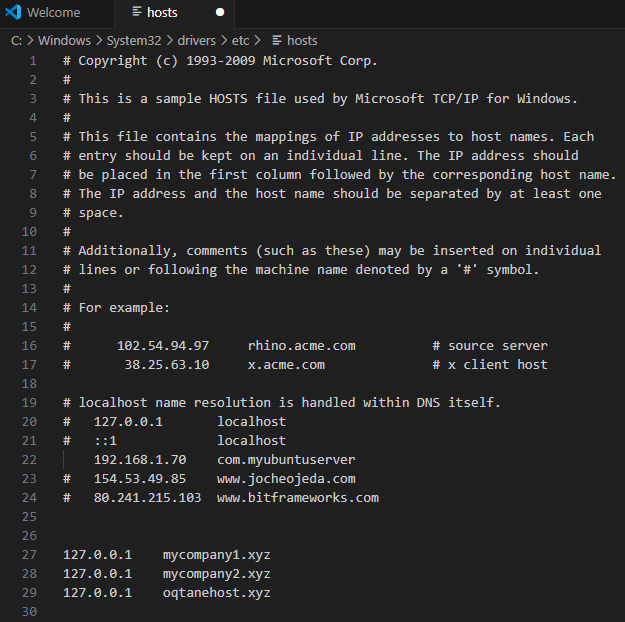
Below, you’ll see a screenshot of my hosts file.
I’ve mapped my fake domains to my local IP address,
so when I open them in the browser, the requests go straight to my Kestrel server, which then routes them to the correct tenant.
How to Edit the Windows Hosts File
Editing the hosts file in Windows is simple, but you need administrative permissions.
Here’s how you can do it safely:
Press Start, type Notepad, then right-click it and select Run as administrator.
Once Notepad opens, go to File → Open and browse to:
C:\Windows\System32\drivers\etc\hosts
In the open dialog, change the filter from “Text Documents (*.txt)” to “All Files (*.*)”
so you can see the hosts file.
Add your entries at the bottom of the file. For example:
127.0.0.1   mycompany1.xyz
127.0.0.1   mycompany2.xyz
Each line maps an IP address to a domain name.
Save the file and close Notepad.
Open your browser and visit http://mycompany1.xyz:44398
(or the port your Oqtane app is running on).
You should see the tenant corresponding to that domain.
⚠️ Important: If you edit the file without admin rights,
you won’t be able to save it. Also, be careful — if you modify or delete system entries by accident,
your network resolution might stop working.
Here is how my host file actually looks at the moment
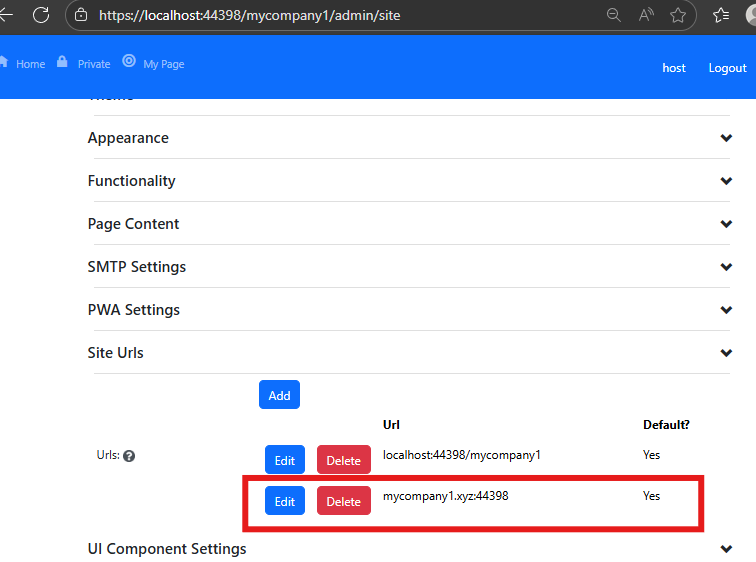
Set siteURL for :Company 1
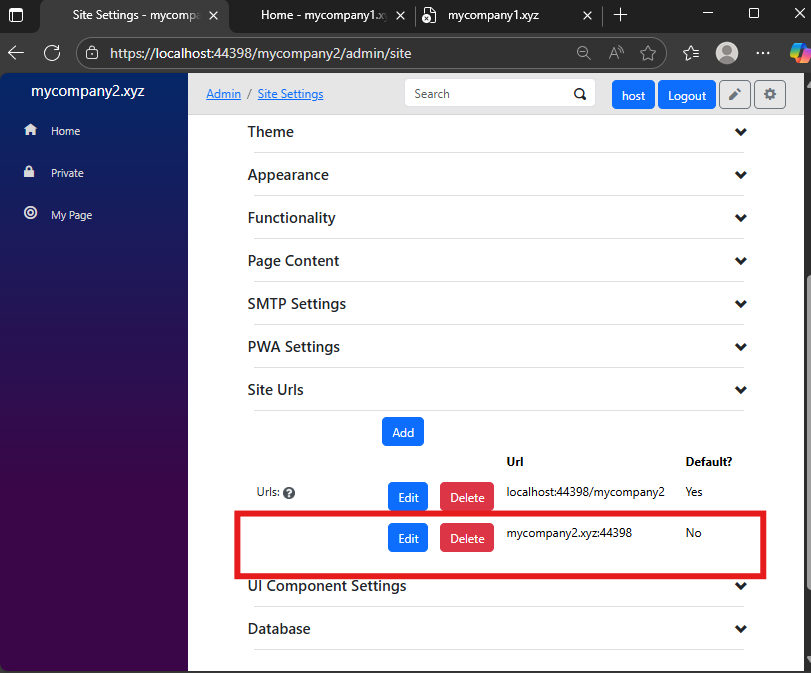
Set siteURL for :Company 2
Testing with Real Domains
Of course, this same logic applies to real domains too — as long as your Oqtane instance is publicly accessible.
In one of the next parts (maybe part 3 or 4), I’ll show how to configure it using a web server like Apache. I know that NGINX is more popular these days,
but I’ve used Apache since my teenage years, so I’m more comfortable with it.
Still, I’ll probably demonstrate both.
Most developers today use cloud providers like AWS or Azure,
but honestly, I still prefer spinning up a simple Ubuntu server and doing everything manually.
The best tool is the one you know best — and for me, that’s Apache on Ubuntu.
Demo
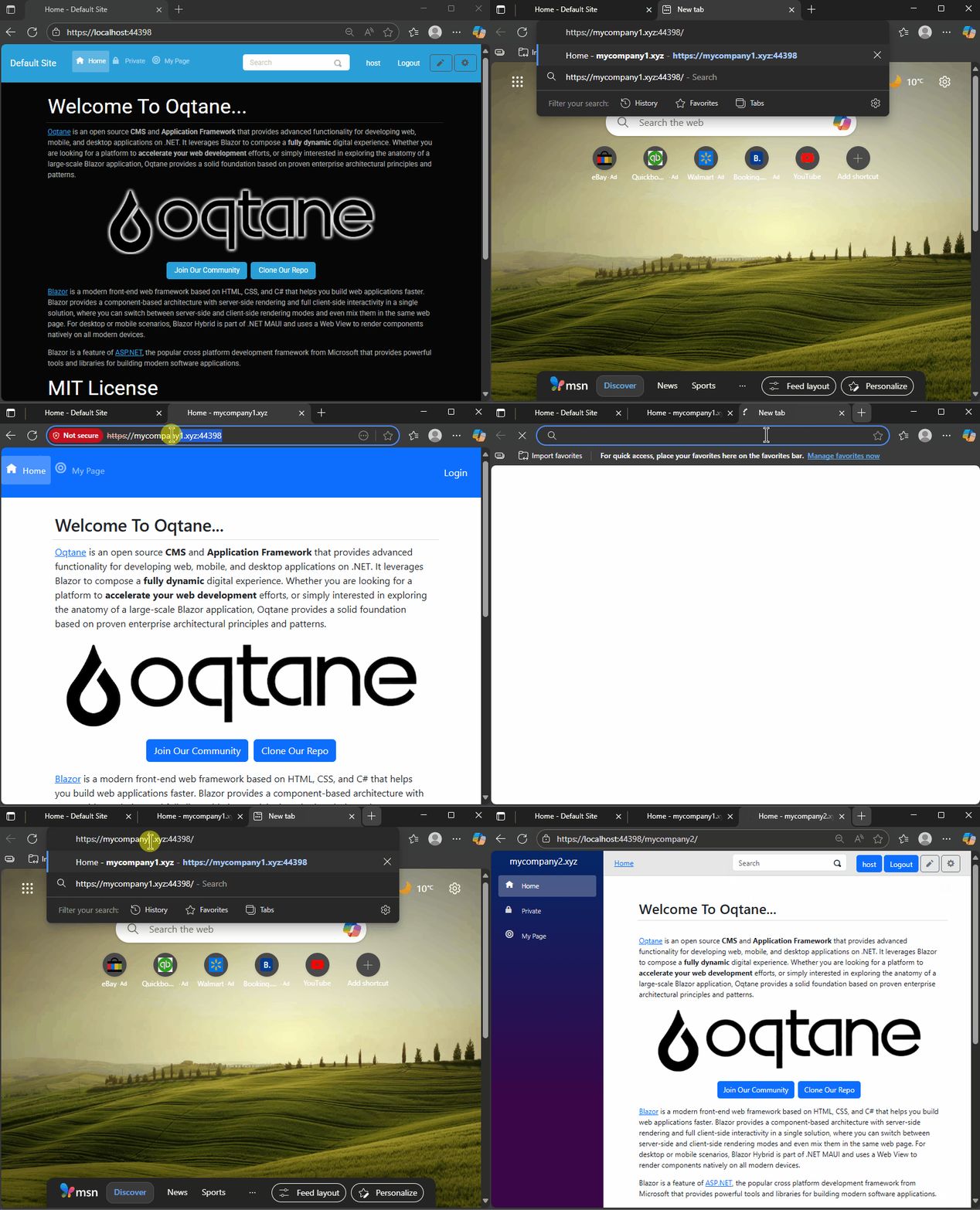
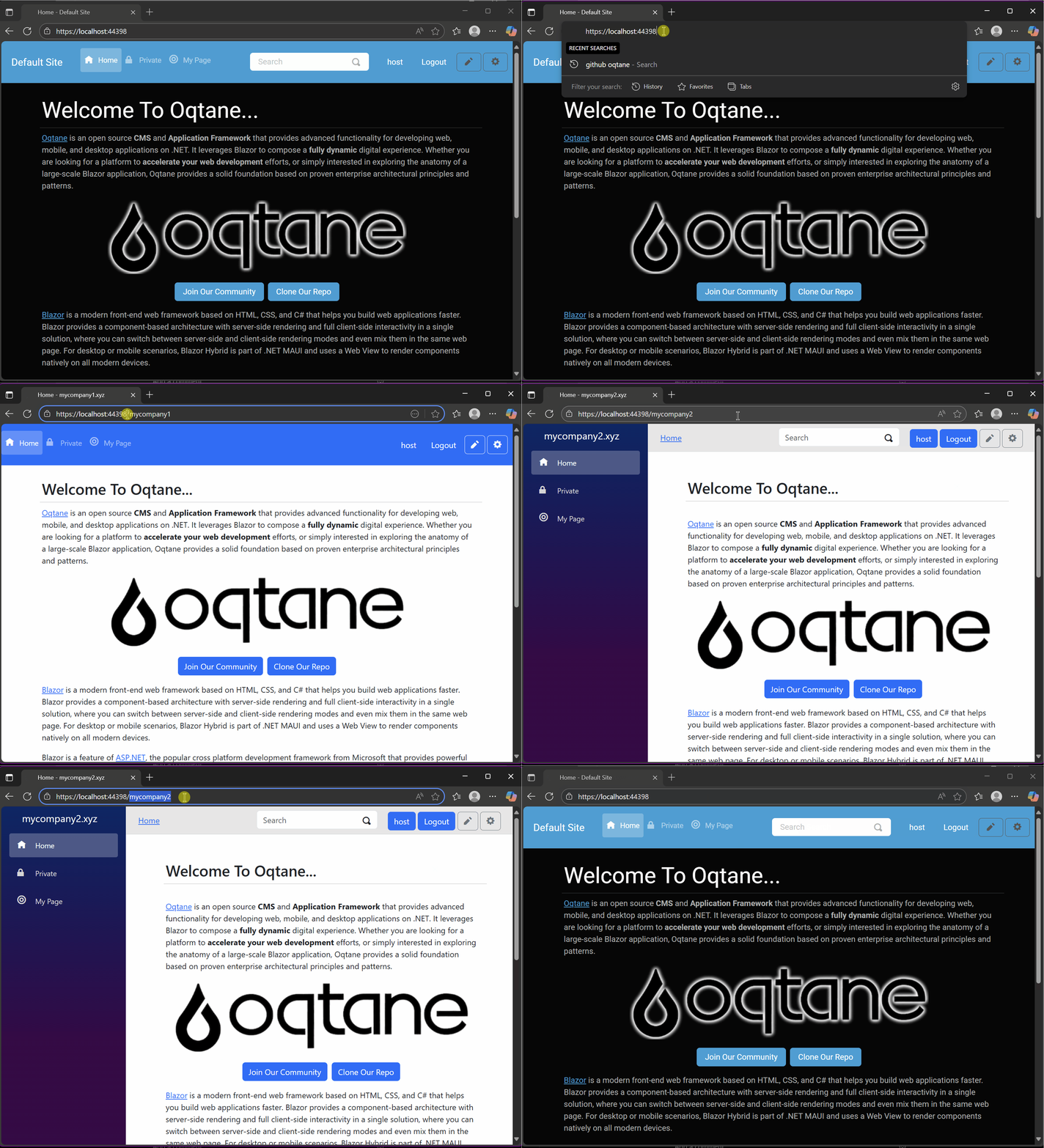
As you can see there is a little bit of a different behavior if is a default site or not If it’s a default site it will redirect to that URL if not it’s going to redirect to the default site URL
Resources
🧩 GitHub Repository — This project is based on the previous example
but adds hostname configuration and uses SQLite for simplicity.
Yesterday, I wrote about changing the runtime mode in Oqtane and how that allows you to switch between Blazor Server and Blazor WebAssembly functionality.
Today, I decided to explore how multi-tenancy works — specifically, how Oqtane manages multiple sites within the same
installation.
Originally, I wanted to cover the entire administrative panel and all of its modules in one post, but that would’ve been too big.
So, I’m breaking it down into smaller topics. This post focuses only on site functionality and how multi-tenancy works from the administrative side — basically, how to set up tenants in Oqtane.
Setting Up a Multi-Tenant Oqtane Installation
To make these experiments easy to replicate, I decided to use SQLite as my database.
I created a new .NET Oqtane application using the official templates and added it to a GitHub repository.
Here’s what I did:
Set up the host configuration directly in appsettings.json.
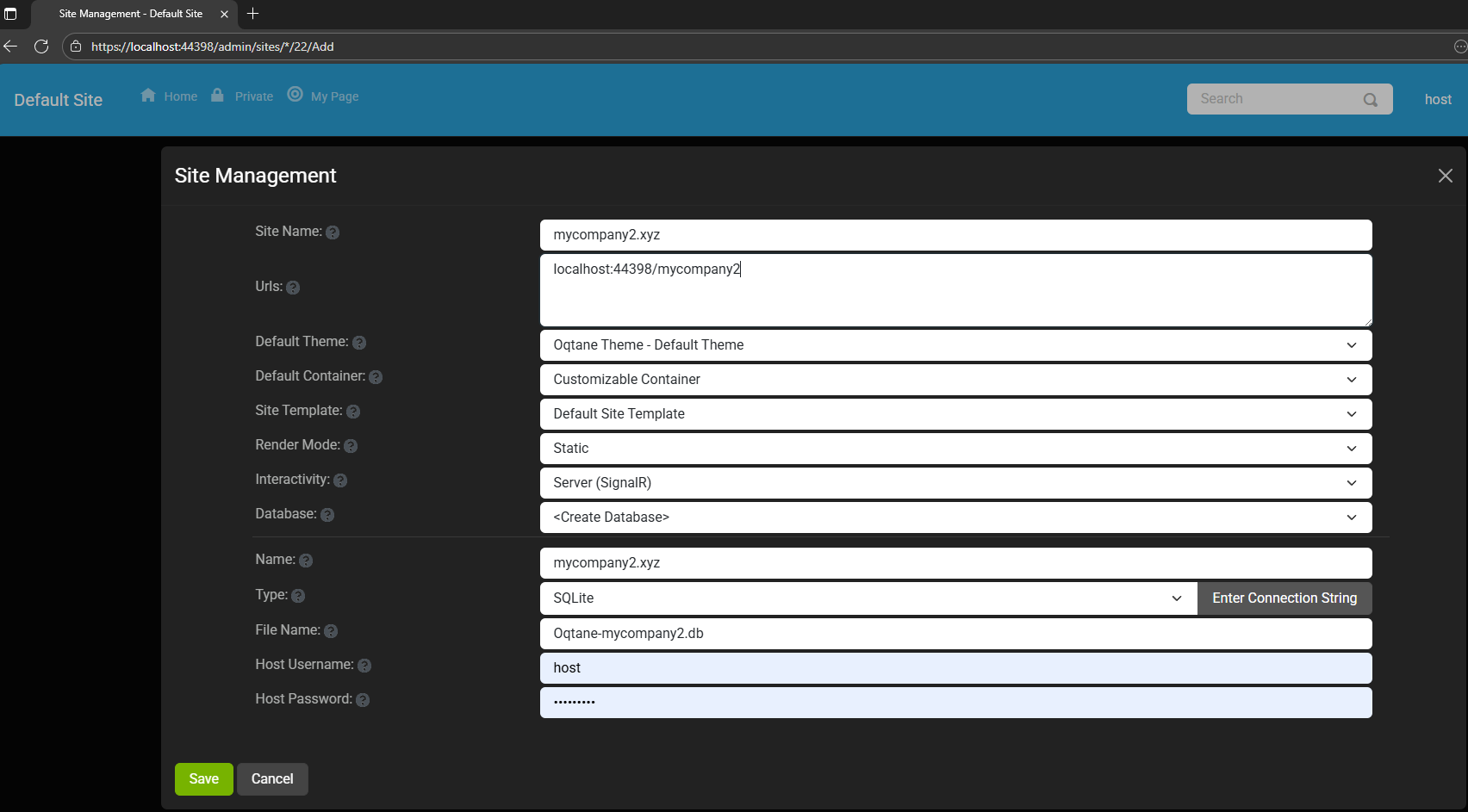
Ran the app, went to the admin panel, and created two additional sites.
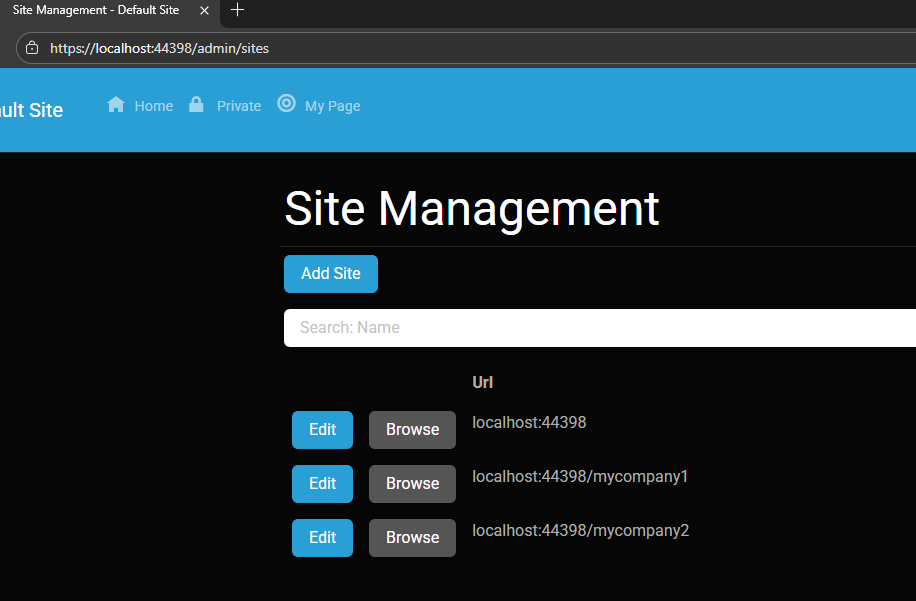
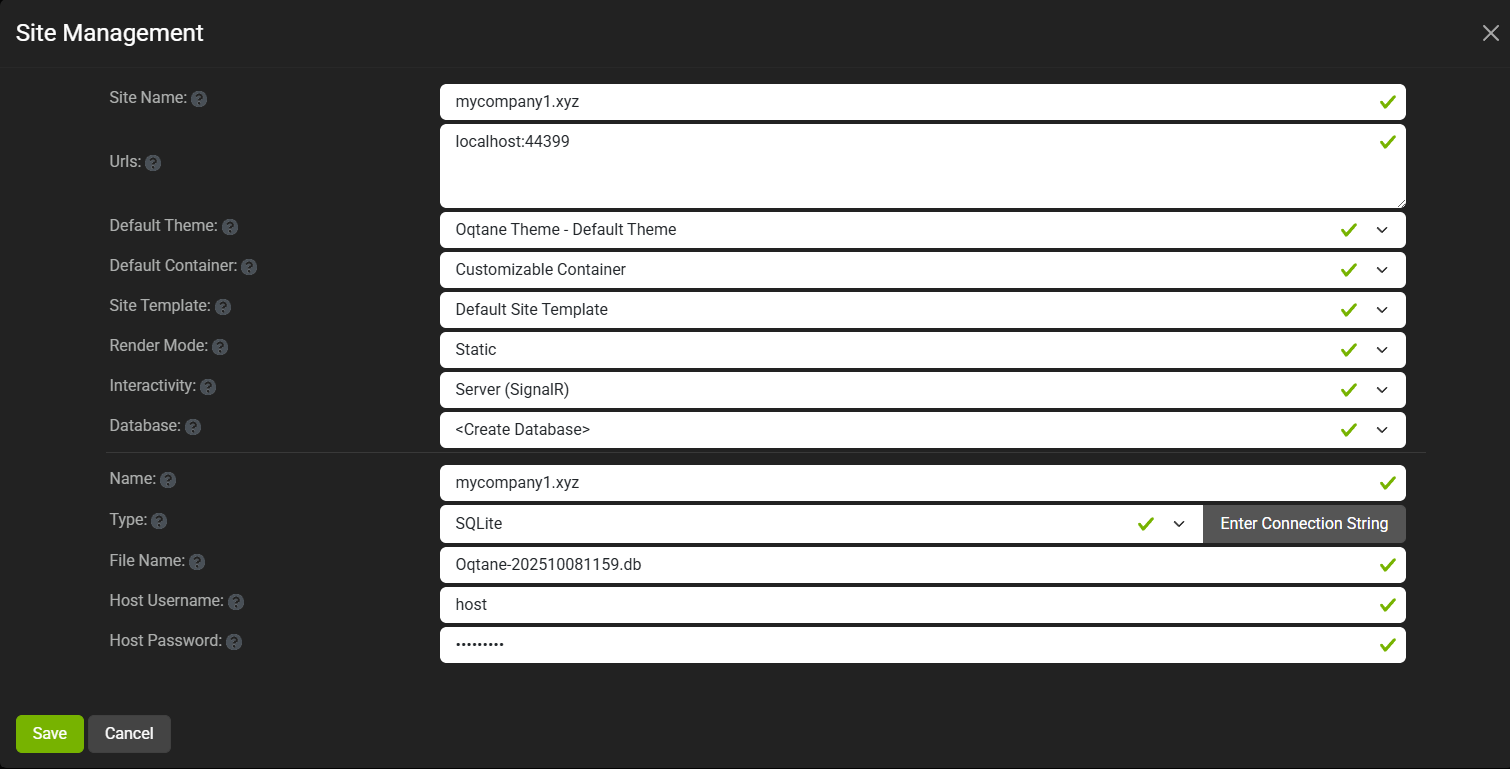
You can see the screenshots below showing the settings for each site.
At first, it was a bit confusing — I thought I could simply use different ports for each site (like 8081, 8082, etc.), but that’s not how Oqtane works. Everything runs in the same process, so all tenants
share the same port.
Instead of changing ports, you configure different URL paths or folders. For example:
http://localhost:8080/ → the main host
http://localhost:8080/mycompany1 → first tenant
http://localhost:8080/mycompany2 → second tenant
Site Managment
Site MyCompany1
Site MyCompany2
Each tenant can:
Use a separate database or share the same one as the host
Have its own theme
Maintain independent site settings
In the short GIF animation I attached to the repository, you can see how each site has its own unique visual theme — it’s really neat to watch.
When you add a new site, its connection string is also stored automatically in the application settings. So, if you download
the repository and run it locally, you’ll be able to access all the sites and see how the URLs and configurations work.
These blog entries are like my personal research notes — documenting what I discover while working with Oqtane.
I’m keeping each experiment small and reproducible so I can:
Share them with others easily
Download them later and reproduce the same setup, including data and configuration
What’s Next
In the next post, I’ll cover virtual hosting — how to use domain names that forward to specific
URLs or tenants. I’ve already done some research on that, but I don’t want to overload this post with too many topics.
For now, I’ll just attach the screenshots showing the different site configurations and URLs, along with a link to the GitHub
repository so you can try it yourself.
If you have any questions, feel free to reach out! I’ll keep documenting everything as I go.
One of the great things about Oqtane is that it’s open source — you can always dive into the code, or if you’re
stuck, open a GitHub issue. Shaun Walker and the community are incredibly helpful, so don’t hesitate to ask.
Thanks again to the Oqtane team for building such an amazing framework.
Oqtane Notes: Understanding Site Settings vs. App Settings
OK — it’s time for another blog post (or maybe just a mental note) about Oqtane.
I’ve been doing what feels like a million installations of it lately. Honestly, if the Oqtane team gets a notification every time I spin up a new instance, they’re probably tired of seeing my name by now. I’ve been spending nearly every free minute exploring the framework — I love diving into new technologies, digging into the source code, and figuring out how things really work.
One of the most beautiful parts about Oqtane is that it’s open source. You can simply go into the repository and inspect the source code yourself. Some parts might not be obvious at first glance, but the project’s creator, Shaun Walker, is incredibly responsive and helpful to the community. I think I’ve only posted a couple of issues over the years, but every single time I’ve woken up the next morning with a thoughtful response waiting — even though I’m usually several time zones ahead in Europe. He really knows Oqtane inside and out.
Hosting Models and Render Modes
As you probably know, one of Oqtane’s biggest strengths is its flexibility with Blazor hosting models. It can run as Server or WebAssembly, and you can switch between them with a simple configuration change.
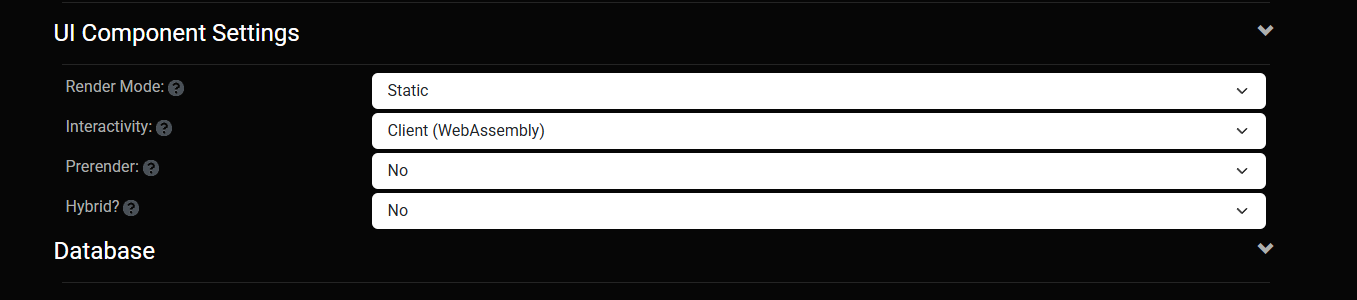
On top of that, Oqtane supports different render modes for components: Interactive or Static. In simple terms, you can choose to render content on the server (similar to how PHP works) or make it fully interactive like a standard Blazor app where the state refreshes dynamically.
You can toggle these behaviors with just a few clicks in the admin backend — which is awesome once you understand how the settings are actually applied.
My Confusion (and the Lesson Learned)
This post was originally meant to be a follow-up to the previous one about database configuration, but I ran into an interesting issue while testing API controllers. I wanted to confirm that when I ran the application in WebAssembly mode, it would hit the API controllers correctly.
It didn’t — at least not at first.
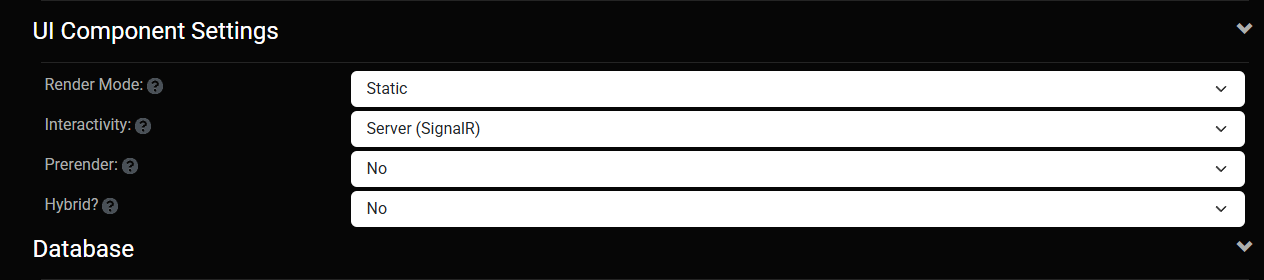
I spent quite a while trying to figure out why. Oqtane has both app-level settings (in appsettings.json) and site-level settings (in the admin panel), and it wasn’t immediately clear which ones took priority. I initially thought I could just change the render and runtime options in appsettings.json, restart the app, and see the effect. But it didn’t work that way.
After some trial and error — and a helpful reply from Shaun — I realized my mistake. When you first spin up a new site, Oqtane uses the values defined in appsettings.json. But once that site exists, it maintains its own configuration separately. From that point forward, any runtime or render mode changes must be made in the site settings from the admin panel, not in the original configuration file.
Server Runtime
WebAssembly Runtime
The Takeaway
If you edit appsettings.json after your first site is already created, it won’t affect the existing site — those values only apply when a new site is initialized.
So, to summarize:
Before the first run → Configure defaults in appsettings.json.
After the site is running → Change settings from the admin backend.
That was the source of my confusion. Hopefully, this note saves someone else a few hours of head-scratching.
Thanks again to Shaun and the entire Oqtane team for keeping this project alive and so well supported.
These posts are just my personal notes, but I hope they help someone who’s following the same learning path.