
by Joche Ojeda | Jul 31, 2019 | Uncategorized
If you updated your visual studio to version 16.2.0 and you are using MSBuildSdkExtras your project won’t compile.
so to fix this problem (this is a temporary fix). You need to add the following lines to your csproj
<PropertyGroup Label="Android DesignTimeBuild error workaround">
  <DesignTimeBuild>false</DesignTimeBuild>
</PropertyGroup>

by Joche Ojeda | Jul 24, 2019 | Nuget
There are times when you have been working on your new exciting project and it looks so good that you just want to release it as soon as possible so the world can be blessed with your new NuGet package but wait your new library is a complex library and require special setup instructions after it has been installed.
Well, we can solve that problem by adding a readme file with all the setup instructions, to do that add the following XML snippet to your csproj file, then you can just add a ReadMe.txt to your project. Now when the end-user install your NuGet package the read me file will automatically open
<ItemGroup>
<None Include="ReadMe.txt" pack="true" PackagePath="." />
</ItemGroup>

by Joche Ojeda | Jul 22, 2019 | Nuget
Sometimes during the development stage, you need to add package references to your project that are only needed either during the development or compilation stage but they are not actually required by the emitted assembly.
So how do we avoid to flood the end project with package dependencies that are actually not needed? Well the answer is super simple but is not obvious, so let’s see the following example
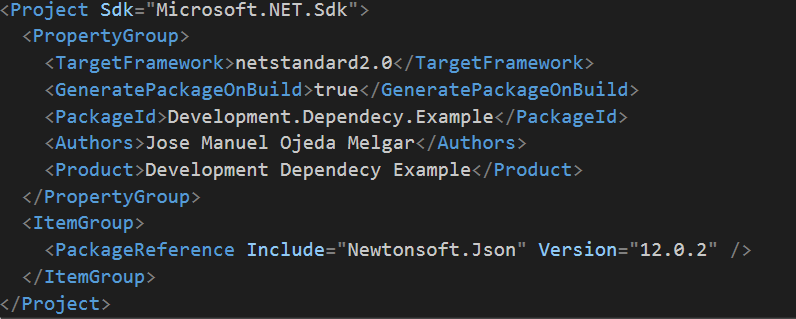
Now we can use the package explorer to open the package produced by the csproj above.
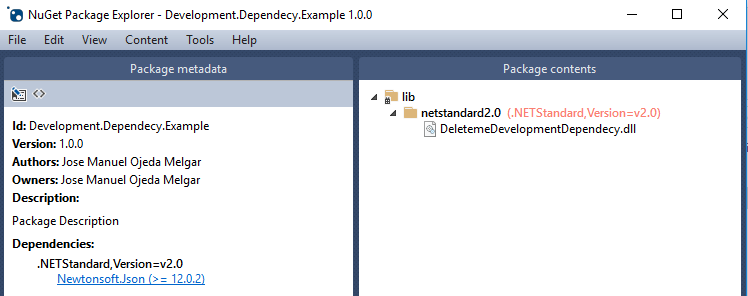
as you can see the package Newtonsoft.Json is included as a dependency since we include it on the csproj as package reference. So how can we fix that? the answer depend on how now you create your NuGet package, in this case, I’m going to focus my answer on excluding the dependency in a package created by the info in the csproj file (there is a different approach if you use the nuspec file).
To exclude a package reference you have to add the private asset attribute as shown in the image below.
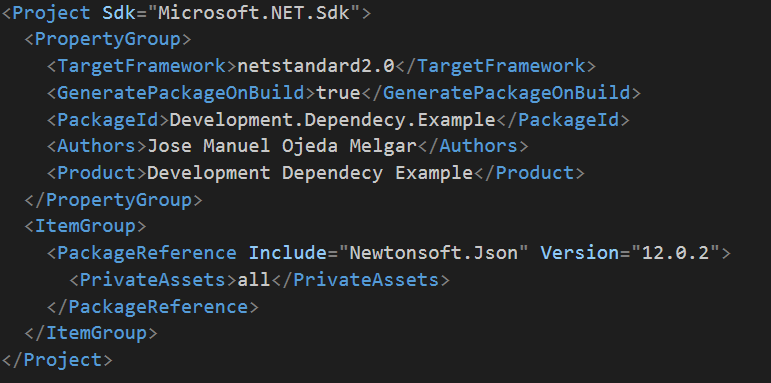
<PackageReference Include="Newtonsoft.Json" Version="12.0.2">
  <PrivateAssets>all</PrivateAssets>
</PackageReference>
You can learn more about this attribute on the following link
Now if we open the package produced by the csproj above we will see that now there are not dependencies listed
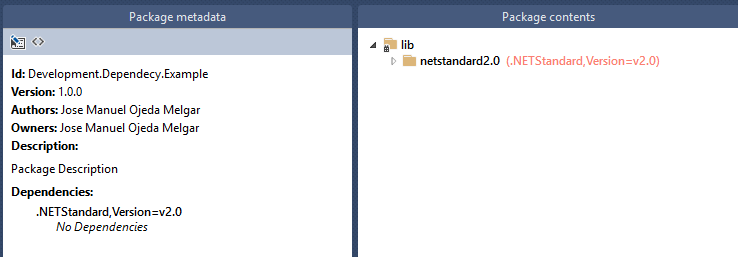
So that is how we get rid of development dependencies, to learn more about how to package a NuGet I recommend the following link
https://docs.microsoft.com/en-us/nuget/reference/nuspec
by Joche Ojeda | Jun 24, 2019 | Brevitas
First, let’s start with that is Brevitas, if someone asks me (the creator) I will say that Brevitas is an application framework for Xamarin Forms that you can use to develop L.O.B (Line of Business) Applications. Creating mobile apps using MVVM pattern is fun, but it requires an incredible amount of time, I have been a long time user of the application framework XAF and I love its productivity-oriented approach. So when I created Brevitas that was my main goal, to save time for me and other developers, if you save development time and make money at the same time you can dedicate more time to yourself and your loved ones.
For Oscar & Юлия
Because everything that is good in my life was born this day
Download Brevitas Application Framework Installer
[download id=”516″]
Brevitas NuGet Repository
http://nuget.bitframeworks.com/nuget/brevitas/
by Joche Ojeda | Jun 10, 2019 | netcore
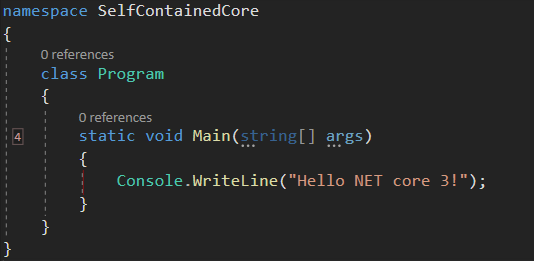
I have a new project that I want to deploy and I don’t want it to depend on the dot net framework, so I decided to create a self-contained executable. At first, I thought it was an easy process and don’t get me wrong, it is, but I could not find all the pieces of the puzzle in one single blog post or youtube video, so I decided to write a really small tutorial about it, let’s begin
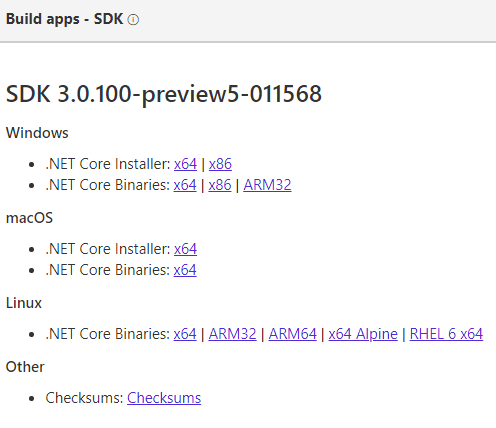
1 – Install the net core 3 SDK (still in preview). You can download it here
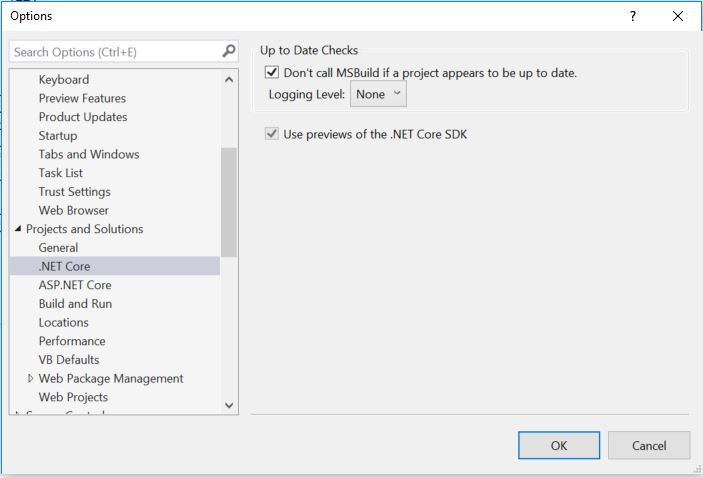
2 – Configure Visual Studio 2019 to use the preview version of net core by going to: Tools -> Options -> Projects and Solutions -> .NET Core -> Use Previews of the .NET Core SDK.
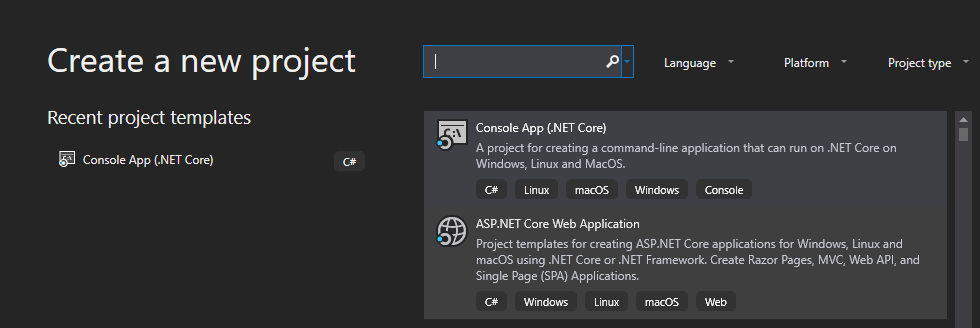
3 – Create a new net core console application in Visual Studio 2019: File-> New -> Project
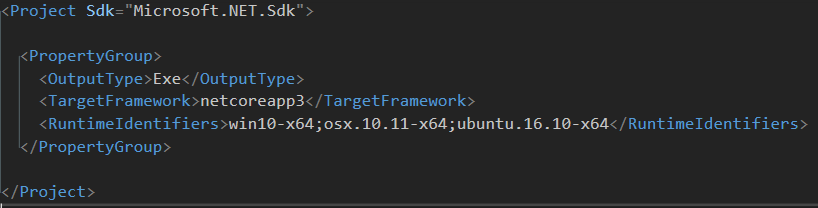
4 – Edit your csproj and add the runtime identifiers <RuntimeIdentifiers>win10-x64;osx.10.11-x64;ubuntu.16.10-x64</RuntimeIdentifiers>
 \
\
4 – Open a console window in the directory where your csproject is located and run the following command to create a single executable for windows:
dotnet publish –r win10–x64 /p:PublishSingleFile=true
5 – If needed run the command for the others runtime identifiers
dotnet publish –r osx.10.11-x64 /p:PublishSingleFile=true
dotnet publish –r ubuntu.16.10-x64 /p:PublishSingleFile=true
Thats it for this post, it looks like net core 3 will make application distribution a piece of cake 🙂
