Greenfield vs Brownfield: How AI Changed the Way I Build and Rescue Software
I recently listened to an episode of the Merge Conflict podcast by James Montemagno and Frank Krueger where a topic came up that, surprisingly, I had never explicitly framed before: greenfield vs brownfield projects.
That surprised me—not because the ideas were new, but because I’ve spent years deep in software architecture and AI, and yet I had never put a name to something I deal with almost daily.
Once I did a bit of research (and yes, asked ChatGPT too), everything clicked.
Greenfield and Brownfield, in Simple Terms
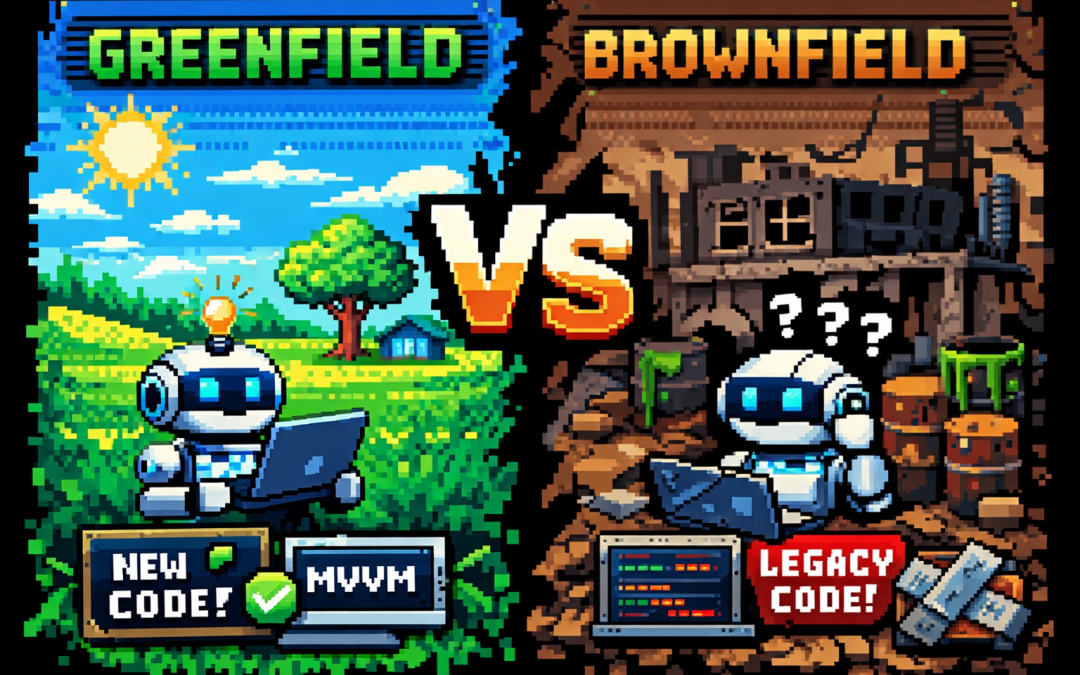
- Greenfield projects are built from scratch. No legacy code, no historical baggage, no technical debt.
- Brownfield projects already exist. They carry history: multiple teams, different styles, shortcuts, and decisions made under pressure.
If that sounds abstract, here’s the practical version:
Greenfield is what we want.
Brownfield is what we usually get.
Greenfield Projects: Architecture Paradise
In a greenfield project, everything feels right.
You can choose your architecture and actually stick to it. If you’re building a .NET MAUI application, you can start with proper MVVM, SOLID principles, clean boundaries, and consistent conventions from day one.
As developers, we know how things should be done. Greenfield projects give us permission to do exactly that.
They’re also extremely friendly to AI tools.
When the rules are clear and consistent, Copilot and AI agents perform beautifully. You can define specs, outline patterns, and let the tooling do a lot of the repetitive work for you.
That’s why I often use AI for greenfield projects as internal tools or side projects—things I’ve always known how to build, but never had the time to prioritize. Today, time is no longer the constraint. Tokens are.
Brownfield Projects: Welcome to Reality
Then there’s the real world.
At the office, we work with applications that have been touched by many hands over many years—sometimes 10 different teams, sometimes freelancers, sometimes “someone’s cousin who fixed it once.”
Each left behind a different style, different patterns, and different assumptions.
Customers often describe their systems like this:
“One team built it, another modified it, then my cousin fixed a bug, then my cousin got married and stopped helping, and then someone else took over.”
And yet—the system works.
That’s an important reminder.
The main job of software is not to be beautiful. It’s to do the job.
A lot of brownfield systems are ugly, fragile, and terrifying to touch—but they deliver real business value every single day.
Why AI Is Even More Powerful in Brownfield Projects
Here’s my honest opinion, based on experience:
AI is even more valuable in brownfield projects than in greenfield ones.
I’ve modernized six or seven legacy applications so far—codebases that everyone was afraid to touch. AI made that possible.
Legacy systems are mentally expensive. Reading spaghetti code drains energy. Understanding implicit behavior takes time. Humans get tired.
AI doesn’t.
It will patiently analyze a 2,000-line class without complaining.
Take Windows Forms applications as an example. It’s old technology, easy to forget, and full of quirks. Copilot can generate code that I know how to write—but much faster than I could after years away from WinForms.
Even more importantly, AI makes it far easier to introduce tests into systems that never had them:
- Add tests class by class
- Mock dependencies safely
- Lock in existing behavior before refactoring
Historically, this was painful enough that many teams preferred a full rewrite.
But rewrites have a hidden cost: every rewritten line introduces new bugs.
AI allows us to modernize in place—incrementally and safely.
Clean Code and Business Value
This is the real win.
With AI, we no longer have to choose between:
- “The code works, but don’t touch it”
- “The code is beautiful, but nothing works yet”
We can improve structure, readability, and testability without breaking what already delivers value.
Greenfield projects are still fun. They’re great for experimentation and clean design.
But brownfield projects? That’s where AI feels like a superpower.
Final Thoughts
Today, I happily use AI in both worlds:
- Greenfield projects for fast experimentation and internal tooling
- Brownfield projects for rescuing legacy systems, adding tests, and reducing technical debt
AI doesn’t replace experience—it amplifies it.
Especially when dealing with systems held together by history, habits, and just enough hope to keep running.
And honestly?
Those are the projects where the impact feels the most real.